Concept Maps
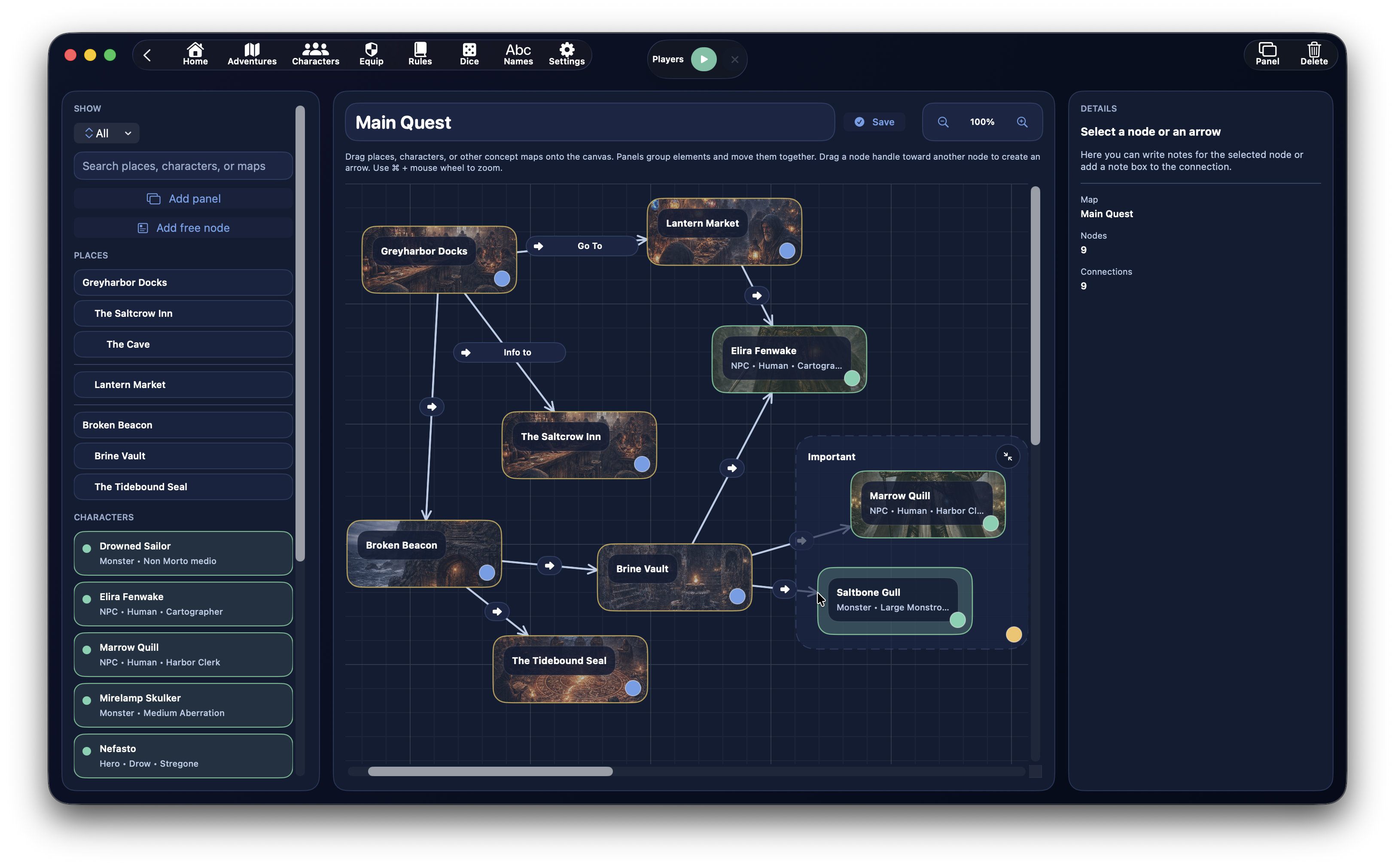
The Concept Maps section is used to build a visual representation of the relationships between places, characters, other concept maps, and free notes.
It is not a geographical map and it is not a generic whiteboard: it is a tool designed to connect the nodes of a campaign in a way that is fast, readable, and navigable.
You can use it to:
- organize the narrative structure of an adventure
- link places and characters
- trace relationships between important elements
- add thematic frames
- write notes directly on nodes, frames, and links
Where It Is Found
Concept maps can be opened from two main entry points:
- from the adventure dashboard, in the
Concept Mapspanel - from the dashboard of a place, when you want to create or open a concept map linked to that place
This means a concept map can be:
- adventure-wide
- linked to a specific place
Screen Structure
The concept maps screen is divided into three main columns:
- left sidebar with palette and map list
- central canvas where you build the map
- right inspector with the details of the selected element
Sidebar: Palette and Sources
The left sidebar gathers everything you can place in the map.
The main categories are:
PlacesCharactersMaps
You can also work with:
- filters
- text search
- frame creation
- free-node creation
Palette Filters
The palette supports a dedicated filter with these modes:
AllPlacesCharactersMaps
Palette Search
The palette search bar is used to quickly find:
- a place
- a character
- an existing concept map
What You Can Drag into the Canvas
Into the canvas you can drag:
- places from the adventure
- characters available to the adventure
- other concept maps
- free nodes
The characters available in the palette are not pulled blindly from the whole database: the system uses characters linked to the adventure.
Places in the Palette
Places in the palette are shown while keeping the hierarchy of the places in the adventure.
Characters in the Palette
Characters shown in the palette include an informative subtitle that may contain:
- type
- ancestry
- class
Maps in the Palette
The Maps section of the palette shows the other concept maps of the adventure.
This is especially useful because a concept map can contain a node that points to another concept map, creating a network of connected maps.
Creating a New Concept Map
You can create a new concept map:
- from the adventure dashboard
- from the dashboard of a place
- directly from the concept maps screen, if you are already managing one
When it is created, DnDino automatically assigns it a progressive name such as:
Concept mapConcept map 2Concept map 3
Renaming a Map
The title of the active map can be edited directly in the screen.
When you leave the field or confirm the change, DnDino saves the new name.
Deleting a Map
By selecting the active map, you can delete it with the Delete button.
The Central Canvas
The canvas is the main area where you build the map.
Here you can:
- drag nodes from the palette
- move nodes
- create frames
- connect nodes and frames with arrows
- read the general campaign structure at a glance
Types of Elements in the Canvas
In the canvas there are three main families of elements:
- nodes
- frames
- links
Nodes
Nodes can represent:
- a place
- a character
- a concept map
- a free node
Frames
Frames are used to visually group multiple nodes into a shared area.
Links
Links are arrows that connect nodes and frames.
Regular Nodes and Free Nodes
Nodes Linked to Real Records
When you drag a place, a character, or a concept map into the canvas, you create a node linked to a real app record.
This means the node:
- shows the real title of the element
- can show a contextual subtitle
- can open the linked record from the inspector
Free Node
The Free node is a special node for ideas and notes that are not linked to any real record.
It is useful for:
- narrative notes
- abstract concepts
- events
- groups of ideas
- design reminders
Group Frames
The Frame button creates a visual container inside the canvas.
A frame:
- has a title
- has its own note
- can be moved
- can be resized
- can be collapsed
- can automatically contain the nodes that fall inside it
Moving Nodes
Nodes can be freely dragged inside the canvas.
Their position is saved inside the map, so the layout remains persistent.
Moving Frames
Frames can also be dragged.
When you move a frame, DnDino can move its contained nodes together with it, keeping the group readable.
Resizing a Frame
Frames can be resized from their corners.
Collapsing a Frame
A frame can be collapsed.
When collapsed:
- it takes less space
- the nodes inside it are hidden from the canvas
- links involving hidden elements do not clutter readability
Creating a Link
Links between elements are created by dragging from the anchor point of a node or a frame to another compatible element.
You can connect:
- node → node
- node → frame
- frame → node
- frame → frame
DnDino prevents:
- identical duplicate links
- links from an element to itself
What the Arrows Are For
Arrows are used to represent relationships, for example:
- a character controlling a place
- a place leading to another
- a map pointing to a sub-map
- a thematic group connected to a narrative node
The meaning of arrows is free, so it is a good idea to adopt a consistent convention in your campaign.
Inspector: Details of the Selected Element
The right column changes depending on what you select.
It can show the details of:
- a node
- a frame
- a link
- or the map as a whole, if nothing is selected
If You Select a Node
When you select a node, the inspector shows:
- title
- subtitle
- optional
Open recordbutton - contextual description, when available
- node notes
- button to delete the node
Opening the Linked Record
If the node is linked to:
- a place
- a character
you can open the relevant form directly.
If the node is linked to another concept map, the button opens that map and also keeps a small navigation history between maps.
Contextual Description of the Node
For some kinds of nodes, the inspector also shows real description text that already exists in the app:
- for a place, it shows the
DM Description - for a character, it shows the character description
Node Notes
Every node also has its own notes, separate from the source record.
If You Select a Frame
When you select a frame, the inspector shows:
- frame title
- number of contained elements
- frame notes
- button to delete the frame
If You Select a Link
When you select an arrow, the inspector shows:
- link summary
- arrow note
- button to delete the link
Notes on links are very useful when you want to give a more precise meaning to the relationship, for example:
- alliance
- dependency
- kinship
- passage
- cause and effect
If You Select Nothing
When no element is selected, the inspector shows a summary of the map:
- map name
- number of nodes
- number of links
Zoom and Navigation
The screen supports:
- zoom
- canvas pan
- pinch gestures
- quick mouse and trackpad shortcuts
Images in Nodes
Nodes linked to places or characters can also use the cover image of the linked record as a visual background.
Concept Maps Linked to Each Other
One of the most powerful uses of the system is the ability to link one concept map to another.
This lets you build:
- a general adventure map
- secondary maps for specific areas
- specialized maps for characters, factions, or subplots
When They Are Most Useful
Concept maps are especially useful when you want to:
- plan a long campaign
- visualize complex relationships
- organize characters and places into blocks
- prepare subplots
- keep a strategic view that does not depend on long text
Difference Compared to Places
The Places section organizes the adventure on a spatial and content level.
Concept maps, instead, organize the campaign on a relational level.
In short:
Places= world structure and contextual contentConcept maps= logical, narrative, and relational structure
Difference Compared to Interactive Maps
Interactive maps are used to navigate real places with markers on a graphical map.
Concept maps are instead used to connect concepts, characters, places, and ideas.
Good Practices
To use concept maps well, it is a good idea to:
- keep one general map for the whole adventure
- create smaller maps for areas or chapters
- use frames to separate groups of nodes
- use free nodes for ideas that do not yet have a real sheet
- annotate nodes and arrows with short but useful notes
In Summary
DnDino concept maps are an advanced organization tool.
They let you build a visual and navigable view of the campaign by connecting:
- places
- characters
- other maps
- free notes
- relationships expressed through arrows
Tip
If a campaign becomes complex, try using one broad concept map for the overall view and smaller maps for individual cities, factions, or subplots. It is one of the most effective ways to avoid losing the thread.