Places
The Places section gathers everything related to the playable spaces of an adventure: cities, dungeons, rooms, narrative areas, linked quests, occupants, combats, images, maps, and interactive maps.
It is one of the richest sections of the app, because it brings together:
- narrative structure
- exploration state
- content to show to players
- contextual occupants
- quick access to combat
What the Places Section Is For
The places dashboard is used to organize the adventure on both the spatial and narrative level.
Here you can:
- create places and quests
- build hierarchies of places and sub-places
- link images and maps
- manage occupants in a place
- create and reopen combats tied to a specific place
- keep separate descriptions for DM and players
- use an interactive map to move between places
How to Reach It
The section opens from the adventure dashboard, through the Places and Quests card.
From that card you can:
- open the full places dashboard
- use quick shortcuts to a recent place when available
- use quick shortcuts to a recent combat tied to a place
Screen Structure
The Places dashboard is organized around two main modes:
NormalInteractive
and around two main areas:
- a left column with tree, search, filters, and quick actions
- a right panel with the detail of the selected place
Normal and Interactive Modes
Normal Mode
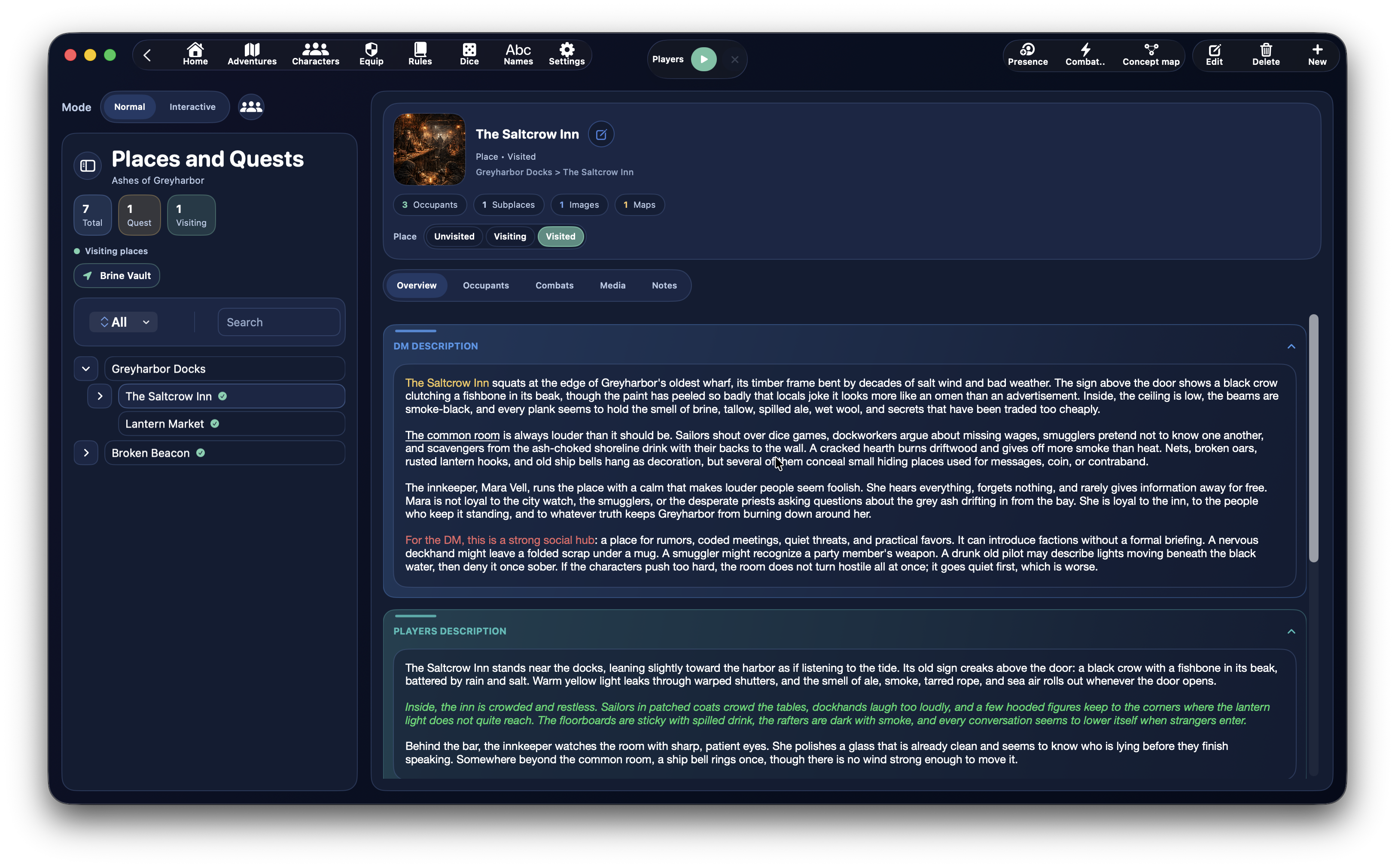
This is the classic mode, designed for directly working on:
- the place tree
- the selected place detail
- occupants
- combats
- media
- notes
It is the best mode for preparing and editing the adventure.
Interactive Mode
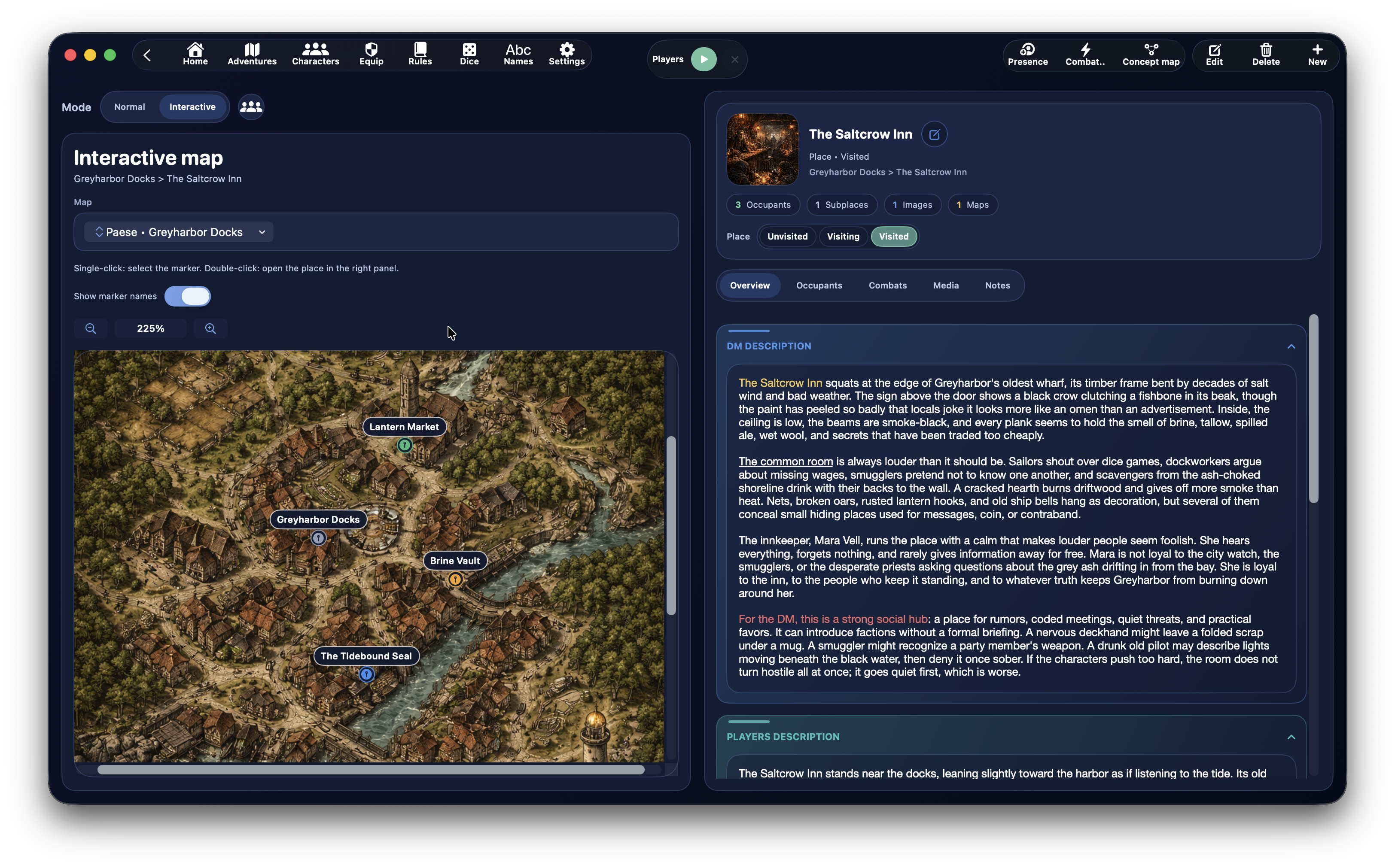
Interactive mode becomes available when the adventure has interactive maps ready to use.
In this mode, the focus shifts to map-based navigation:
- the left side of the screen shows the interactive map instead of the classic place tree
- markers can be selected
- double-click can open the linked place in the right panel
- marker labels can be shown or hidden
- zoom and map movement are available
From the Media panel you can still quickly open the interactive map associated with one of the place maps, but in Interactive mode the map becomes the main content of the left side of the dashboard.
The Left Column
The left column is the navigation panel of the section.
Here you find:
- search
- filters
- a compact summary
- the place and quest tree
Context Menu on Places in the Tree
In tree mode, you can right-click a place to open a context menu with quick actions directly on that node.
The available actions are:
Add sub-placeAdd occupantAdd linkRemove linkCreate concept mapCreate combatEditDelete place
This menu is one of the fastest ways to build the structure of the adventure while working in the tree.
In practice, it lets you reorganize the tree quickly without opening the full place form every time.
Quick Reordering with Drag and Drop
The place tree also supports a quick drag-and-drop workflow.
You can:
- change the order of sibling places
- move a place under another place
- move a place back to the root if you drag it out of a parent branch
This makes it much faster to refine the narrative structure while preparing the adventure.
Filters and Summary
The sidebar also shows a compact summary with:
- total places
- total quests
- number of places currently being visited
Depending on the mode and context, filters may include:
- all
- places
- quests
- visiting
- active
Creating a Place or a Quest
To create a new record, use the creation button in the places dashboard.
The form is divided into three main groups:
Main informationDescriptionsPlace assets
Main Place Information
In the form you can fill in:
Name- parent place or parent links
TypeMarker- place state or quest state
Type: Place or Quest
The Type field lets you choose whether the record is a:
PlaceQuest
If the record is a Place, it uses the visit state:
- not visited
- visiting
- visited
If the record is a Quest, it uses progression state instead:
- inactive
- unavailable
- active
- completed
Parent Places and Hierarchy
The place form supports an advanced hierarchy.
You can select one or more parent places, and DnDino stores that connection as a real hierarchical structure.
This means a place can:
- sit at the root of the adventure
- exist as a sub-place of another place
- also be linked in more than one point of the structure when needed
This is useful, for example, when you want to:
- attach a whole group of places under a quest
- show the same place in more than one branch of the tree
- create different narrative paths without duplicating the record
In these cases, the place is not duplicated: the tree only gains an additional link to the same place.
When you remove a link:
- the place itself is not deleted
- if it has multiple parents, only the extra link is removed
- if it loses its only parent, it returns to the root of the tree
The form still prevents cycles, automatically excluding the place itself and its subtree from the list of possible parents.
Place Markers
Each place can have one or more special markers that are also shown in the dashboard.
Available markers include:
- dangerous
- important
- secret
- blocked
They serve as quick visual highlights to help you read the adventure at a glance.
Place Descriptions
The Descriptions part of the form is divided into several rich text fields:
DM DescriptionPlayer DescriptionCluesTreasuresNotes
This split is very useful because it lets you separate:
- what the DM should know
- what the players may see or discover
- supporting information such as clues and treasure
Internal Links in Place Text
The internal link system is also extremely useful in Places.
Here it is less about automating attacks, and more about making place text navigable and faster to use at the table.
Inside the rich text fields of a place, you can insert links to:
CharacterPlaceSpellFeatRule- and, when useful, roll links too
Why They Matter in Places
Place descriptions often contain many references:
- present or mentioned characters
- linked places
- objects or spells mentioned in the text
- special scene rules
Turning those references into internal links lets you:
- open the sheet of a mentioned character immediately
- jump straight to another place in the adventure
- consult a spell or rule without leaving context
- write denser descriptions that remain easy to navigate
Practical Examples
You can link a character mentioned in the place, such as Captain Arven, or another place referenced in the text, like Sunken Crypt.
This means the description is no longer only narrative: it also becomes a navigation shortcut.
Where They Work Best
The best parts of a place sheet for internal links are:
DM DescriptionPlayer DescriptionCluesNotes
Initial Picker Search
When you press Link, the picker tries to use the selected text as an initial filter.
If it finds a real match in the name of a record:
- it opens already filtered
If it finds no real results:
- it clears the initial filter
- and shows the full list
Place Assets
Each place can have its own assets, divided into:
- images
- maps
In the form you can:
- add images
- add maps
- choose the place cover
- remove the cover
For each asset you can configure:
- display name
- visibility for
Players - visibility for
DM - presentation text
Place Hero Area
When you select a place, the right panel shows a hero area with:
- the place cover
- name
- type (
PlaceorQuest) - current state
- any markers
- the hierarchical chain of the place
It also shows a quick summary with:
OccupantsSub-placesImagesMaps
Detail Tabs
The right panel uses a focus bar with five main sections:
OverviewOccupantsCombatsMediaNotes
Overview
The Overview tab gathers:
- DM description
- player description
- clues
- treasures
- concept maps linked to the place
Occupants
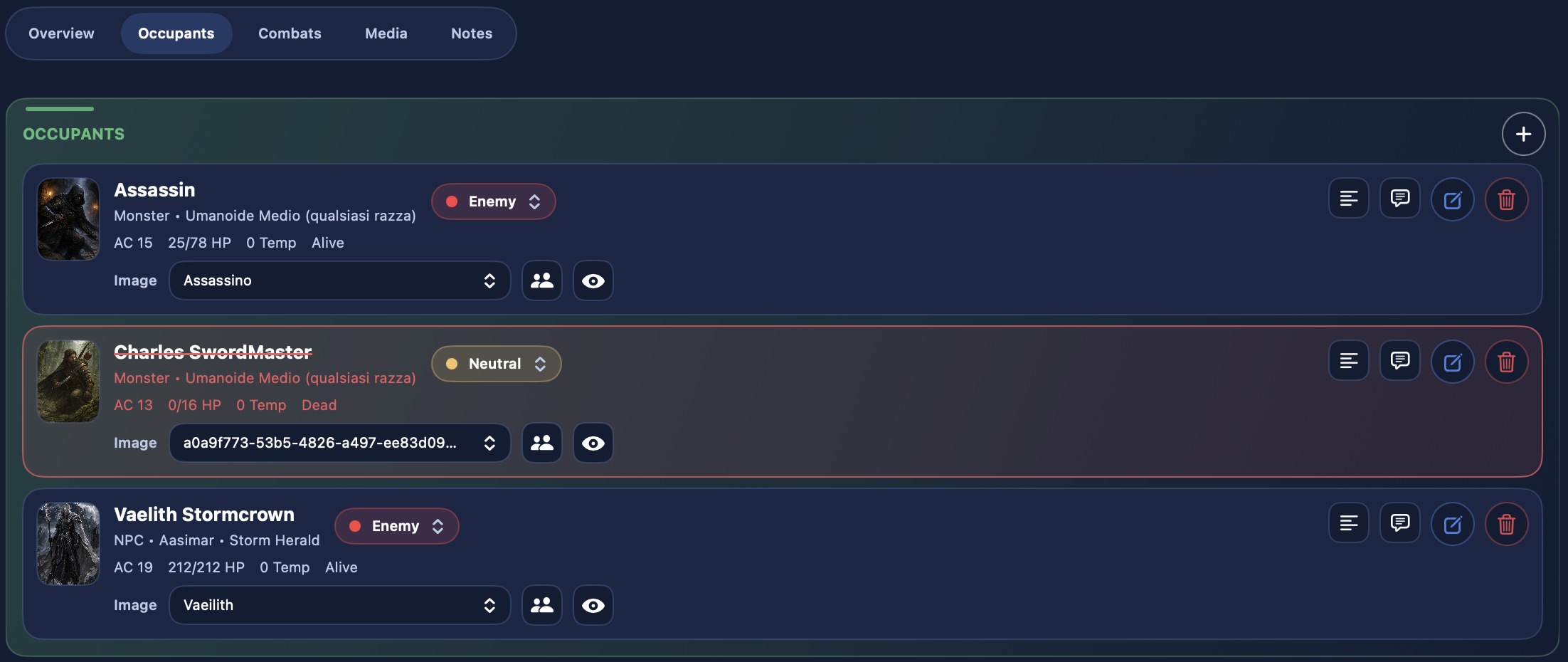
The Occupants tab gathers the characters present in the place.
From here you can:
- see all occupants of the place
- add a new occupant
- open the contextual detail of that occupant
- change their role in the place
- read or edit
DM Notes - remove the occupant
Combats
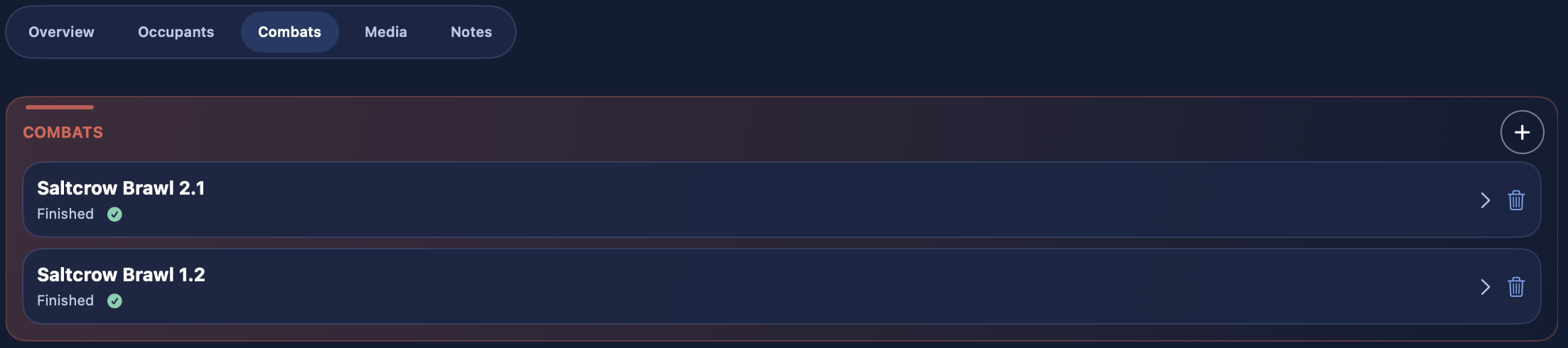
The Combats tab shows all encounters linked to the place.
From here you can:
- create a new combat for the place
- reopen an existing combat
- see whether it is not started, paused, or concluded
- delete a combat
Media
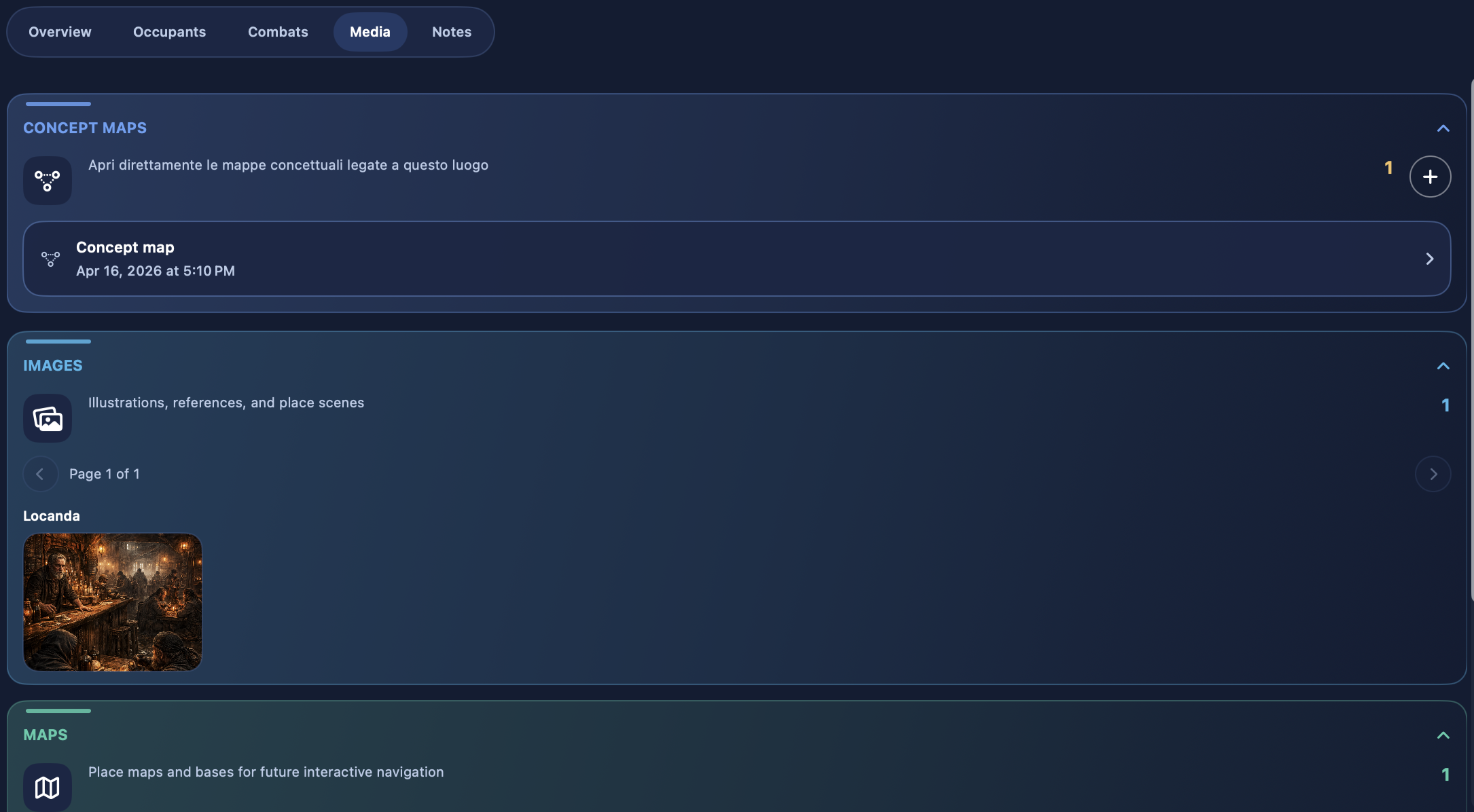
The Media tab gathers:
- place images
- place maps
- inherited maps from parent places when enabled
From here you can:
- browse images
- browse maps
- show them to players
- show them to the DM
- open an interactive map directly
Notes
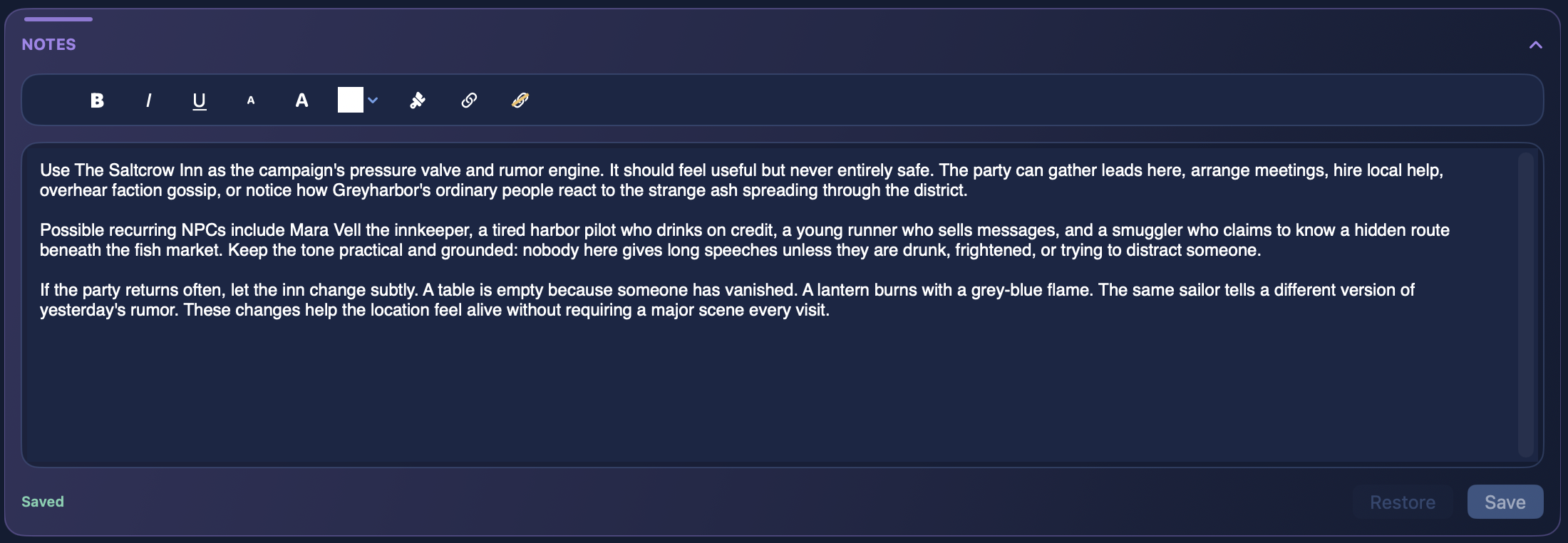
The Notes tab is dedicated to quick DM notes for the place.
Place Occupants
Place occupants are managed contextually and separately from adventure characters and combat participants.
This allows you to keep:
- contextual display names
- role in the place
- local DM notes
- local state when needed
Two Possible Origins for an Occupant
When you add an occupant to a place, the form asks for the Origin.
The possible sources are:
Adventure CharacterBase Sheet
Adventure Character
This origin uses a character that is already linked to the adventure.
In this case the occupant keeps the campaign-specific state.
Base Sheet
This origin clones a base record of type:
NPCMonster
Records of type Hero are not selectable in this mode.
Uniqueness Rules for Occupants
In the places dashboard, DnDino applies precise rules:
- an
Adventure Charactercan only be placed once in the same place - a base
NPCcan only be added once in the same place - a base
Monstercan be added multiple times in the same place
When you add multiple instances of the same monster, the display name is automatically numbered, for example:
GoblinGoblin 2Goblin 3
Place Occupant Data
In the occupant form you can set:
Encounter RoleDisplay NameConditionsDM Notes
If the occupant comes from a base sheet (NPC or Monster), you also get local place state such as:
- temporary HP
- current HP
- state
If the occupant comes from an Adventure Character, the place continues to reference that campaign-level contextual state instead of duplicating it locally in the same way.
Role in the Place
Each occupant has a contextual role:
- ally
- neutral
- enemy
This role matters both for reading the scene and for later flows, such as combat.
Combats Linked to the Place
Combats inside places are created directly from the selected place.
When you create a new combat:
- the combat is saved as an encounter of that place
- it appears immediately in the
Combatstab - it can be reopened later
Place Media
The media area of a place clearly distinguishes:
- images
- maps
The dashboard can also show maps inherited from parent places through the toggle:
Show parent place maps
Interactive Map
When a map is selected as the place's interactive map, you can open it directly from the dashboard.
The interactive map supports:
- zoom
- movement
- markers
- navigation between places
Interactive Map Markers
Each marker can have:
- a position on the map
- a title
- a linked target place
Markers can be:
- created
- moved
- renamed
- linked to a place
- deleted
Basic behavior:
- single click: select the marker
- double click: open the linked place in the right panel
Relationship Between Places, Maps, and Interactive Maps
It helps to think of these three as different layers:
- the place is the narrative and structural container
- the map is a visual asset linked to the place
- the interactive map is a chosen navigable map enriched with markers
Quests in the Places Section
Quests live in the same section as places, but they follow their own behavior.
A quest:
- appears in the tree alongside places
- uses a progression state instead of a visit state
- can still have descriptions, notes, images, maps, occupants, and contextual links
When to Use the Places Section
The Places dashboard is the right place when you want to:
- build the geography of the campaign
- define sub-places and links
- prepare quests and their state
- place occupants in the world
- link images and maps
- use an interactive map for navigation
- open or create combats tied to a specific place
Tip
If the adventure becomes very large, Places works best when you use it as a true mental map of the campaign: places for structure, quests for narrative nodes, occupants for who is present, and combats for what happens in that point of the world.