Combat
The Combat section is DnDino's encounter tracker. It is designed to be fast, compact, and readable when the table is in the busiest part of the session.
Combat always starts from a place and can include the adventure heroes, local presences, NPCs, and monsters tied to that scene.
This page explains:
- preparing the pre-combat screen
- entering and sorting initiative
- the main combat layout
- turn controls
- attacks, damage, healing, conditions, and saving throws
- internal links in attacks and abilities
- the side summary, recent events, and undo
- Player Window support
- final summary and statistics
One Screen or Two
Combat works well on a single screen: the whole DM workflow stays in the main window, with the initiative tracker, compact stat blocks, and summary.
With a second display you can also use the Player Window:
- the DM screen keeps controls, sheets, targets, conditions, and statistics
- the player screen shows a cleaner visual presentation with images and overlays
Tip
A second display is optional. Use it only when you want to separate the DM's operational view from the evocative player presentation.
Player Window During Combat
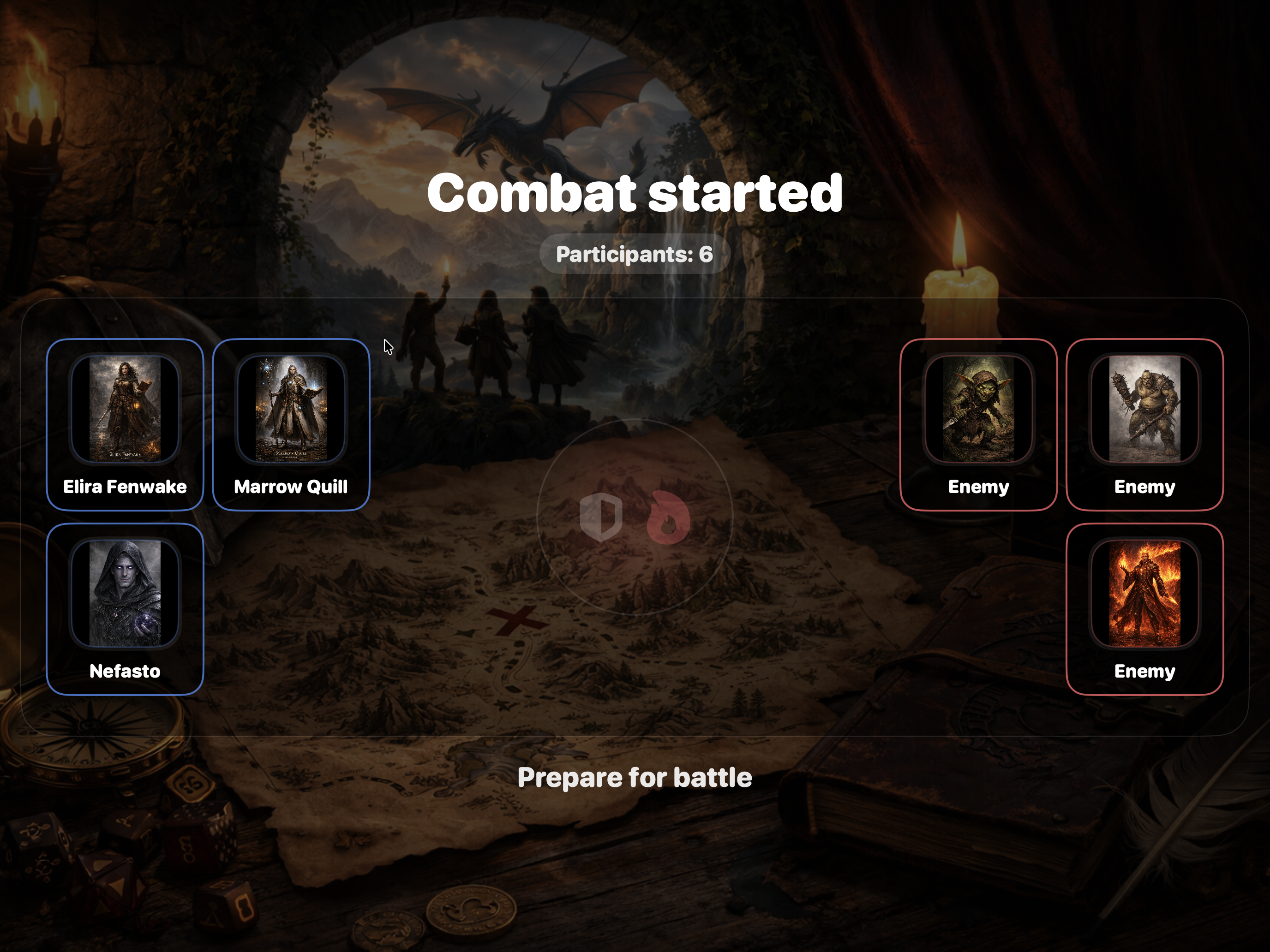
When an encounter starts, DnDino can open or update the Player Window.
If the presentation is enabled, it can show:
- the combat intro with participants
- the current turn participant
- attack animations
- the final summary
The overlay can include:
- round
- current, maximum, and temporary HP
- conditions
- next turn
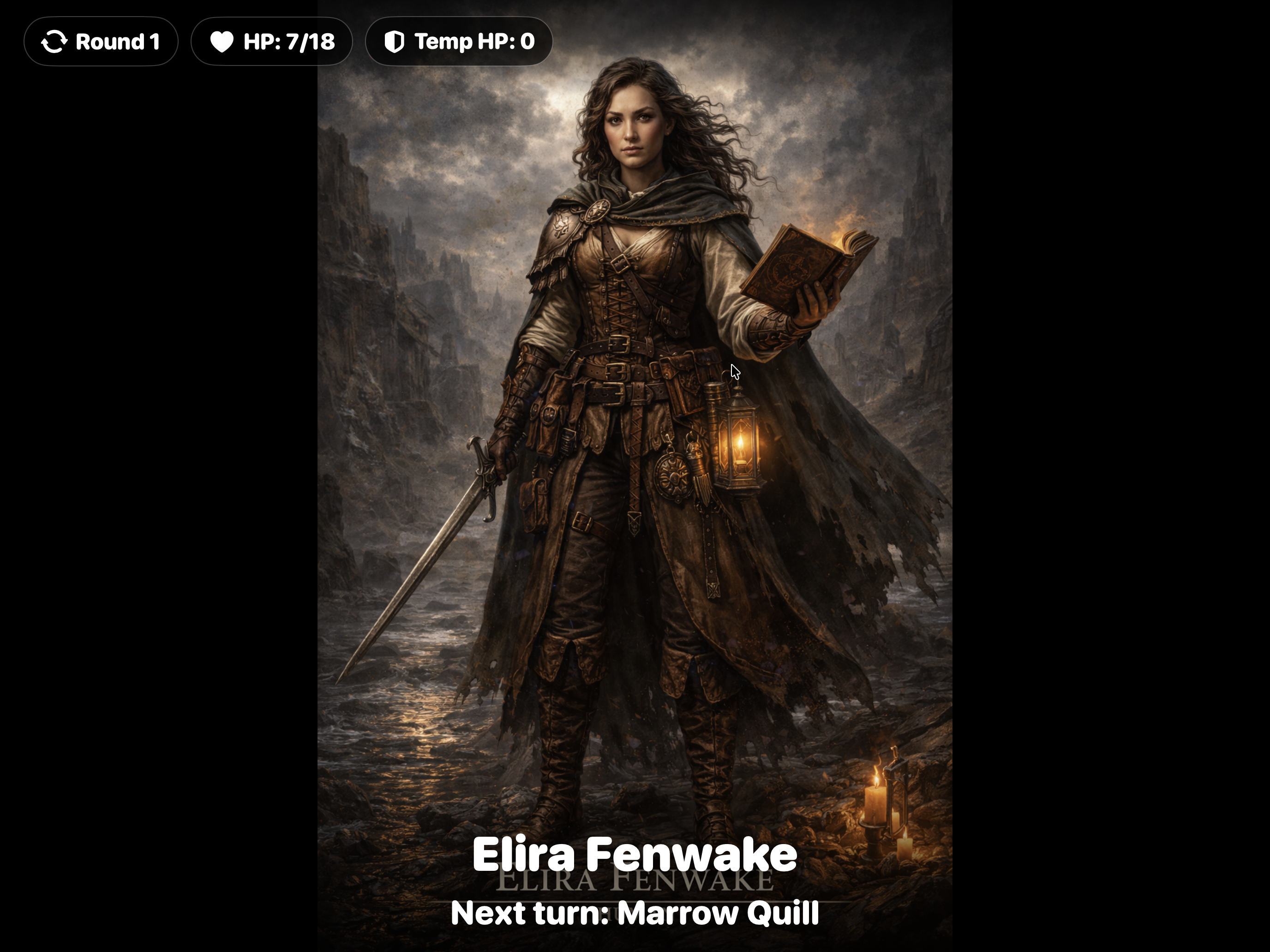
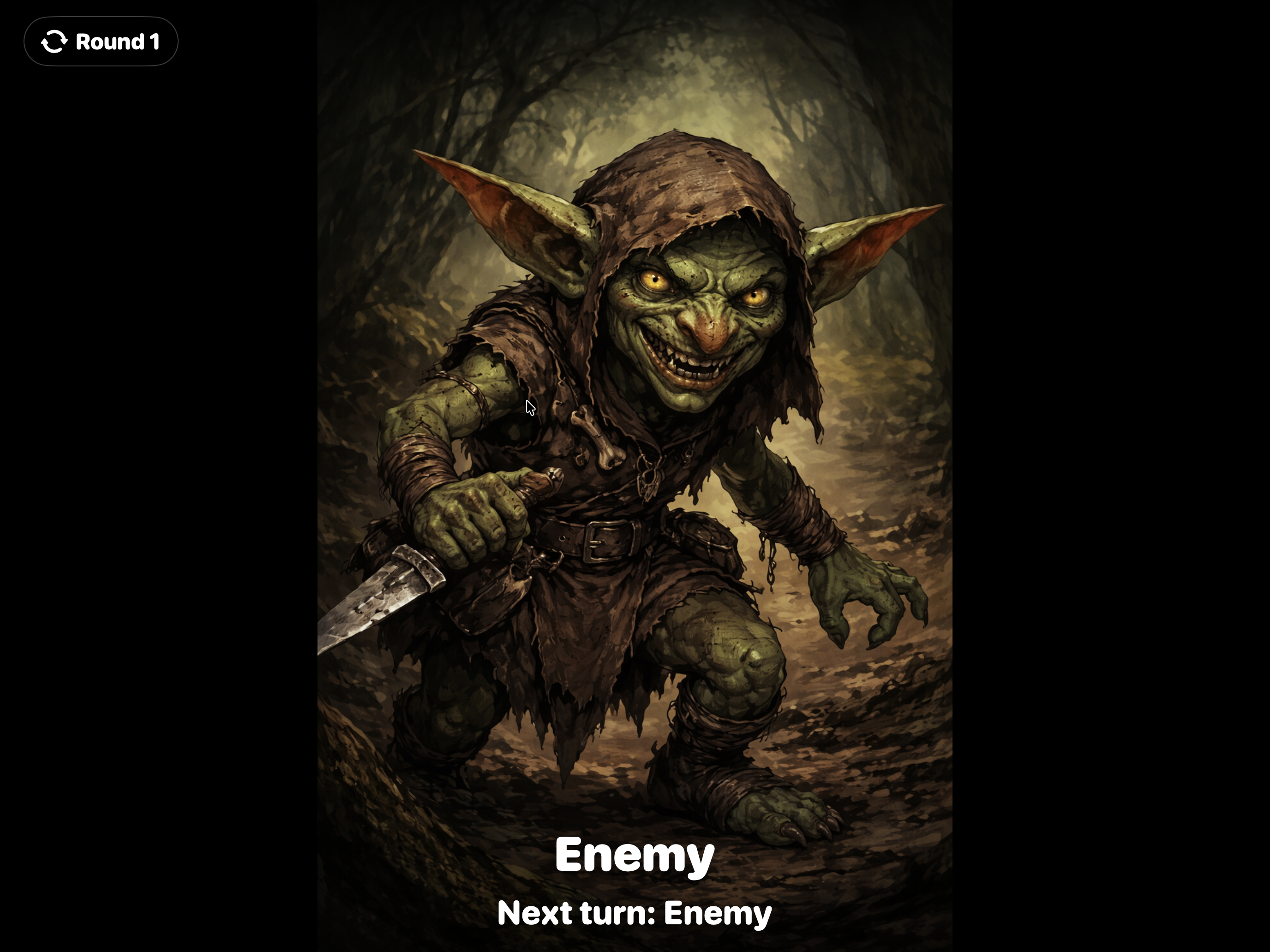
For heroes/allies, NPCs, and monsters you can decide separately which information is shown to players in settings. If an NPC or monster is marked as Ally, it is treated as a hero/ally on the player screen too.
Useful Settings
The main options are in Settings, under Combat and Player Window.
The most important ones are:
Open Player Window even with one monitorShow Player Window controls in the top barShow combat intro to playersShow final summary to playersShow round on player screenShow next turn on player screenShow hero HP on the players screenShow hero conditions on the players screenShow NPC HP to playersShow NPC conditions to playersShow NPC names to playersShow monster HP to playersShow monster conditions to playersShow enemy names to players
Ending combat always asks for confirmation, because closing an encounter synchronizes state and statistics.
Where Combat Opens
Combat is created from a place. Once opened, the screen changes according to the encounter state:
- Pre-combat: prepare participants, names, and initiative.
- Active combat: manage turns, sheets, targets, and the summary.
- Completed combat: review the DM final summary.
Pre-Combat
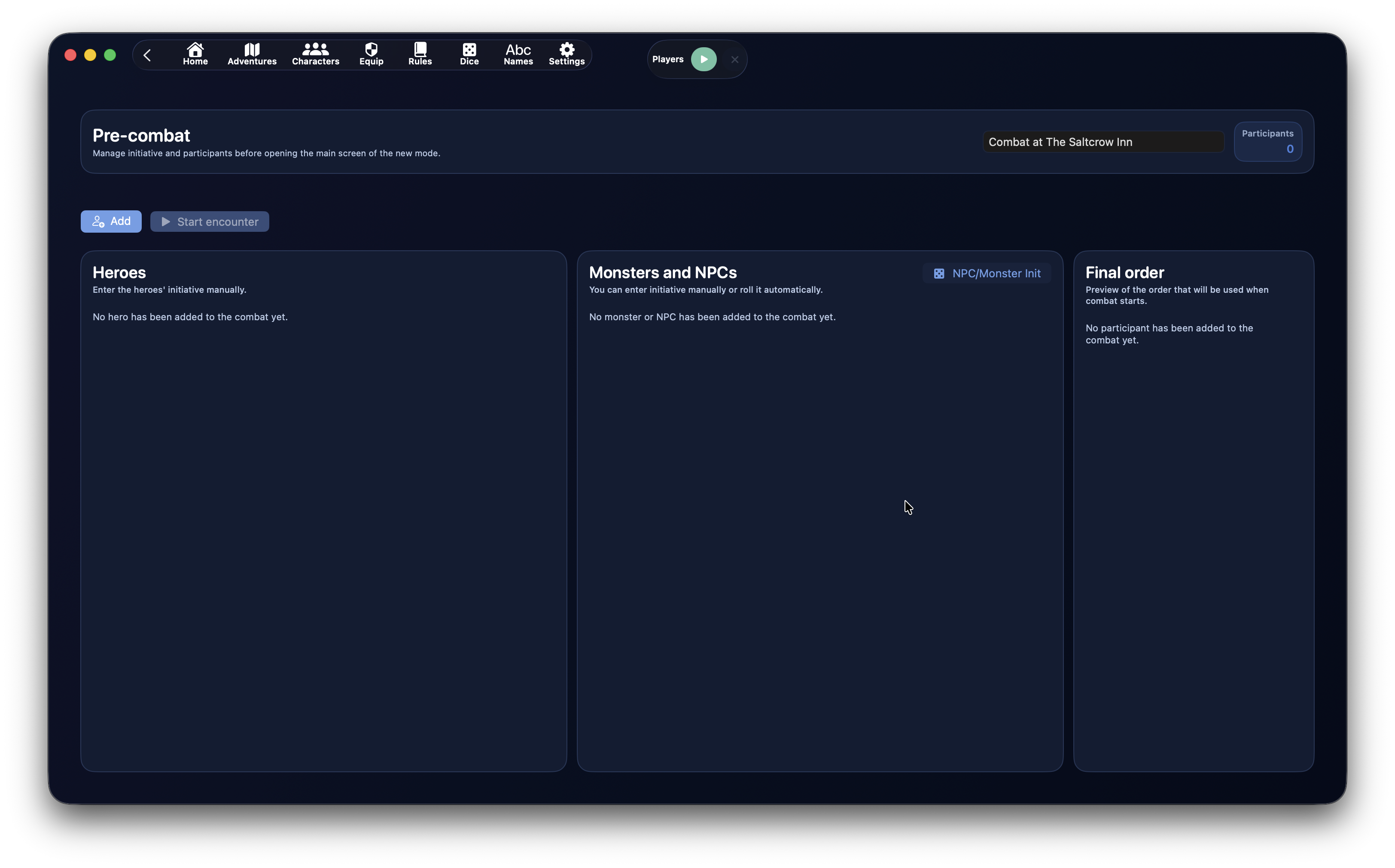
Pre-combat is where you prepare the encounter before the first turn.
The screen has three main areas:
- Heroes
- Monsters and NPCs
- Final Order
The top area also shows the encounter name, participant count, and main actions.
Pre-Combat Actions
The main actions are:
AddStart EncounterNPC/Monster Init, inside the monsters and NPCs column
Add opens the participant picker.
Start Encounter begins combat. If at least one participant has initiative 0, DnDino asks for confirmation.
NPC/Monster Init rolls initiative automatically only for monsters and NPCs. Heroes are normally entered manually, because their initiative usually comes from the table.
Editing Names and Initiative
In pre-combat you can adjust:
- displayed participant name
- initiative
This is especially useful for monsters, for example:
- Goblin 1
- Goblin 2
- Goblin Captain
Initiative is read while you type, without waiting for the field to lose focus. The working columns are not continuously reordered while you enter values: final sorting is applied when combat starts.
Final Order
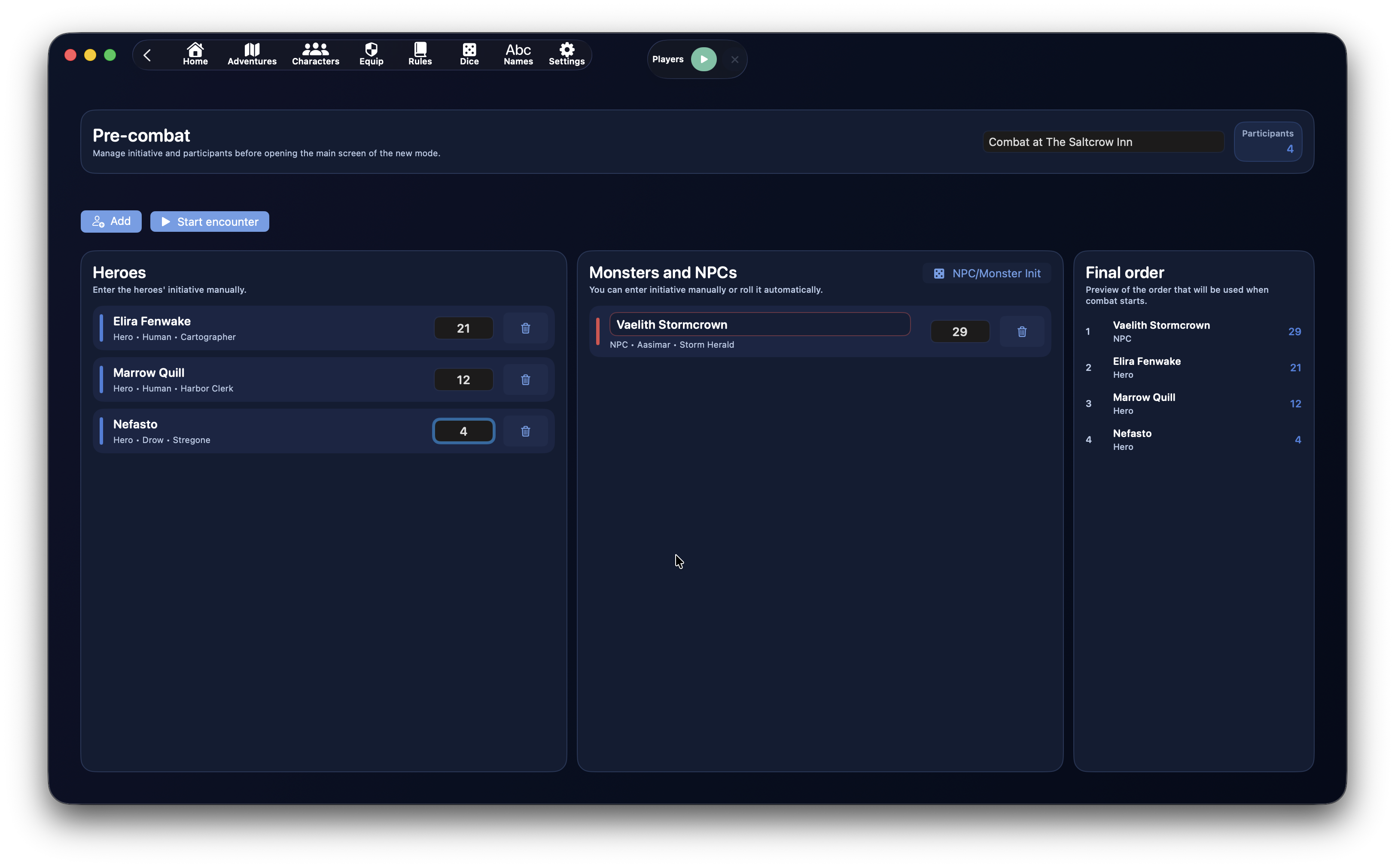
The Final Order panel shows a live preview of the order that will be used when the encounter starts.
The order is calculated as follows:
- highest initiative
- on a tie, highest Dexterity modifier
- if still tied, random tiebreaker
This lets you check the result without disturbing initiative entry.
Where Participants Come From
The add panel can offer:
HeroesPlace PresencesGlobal
Heroes already linked to the adventure can be added only once to the same encounter.
Place presences reuse local state when available.
Global monsters can be added multiple times, because they often represent several copies of the same creature.
Active Combat
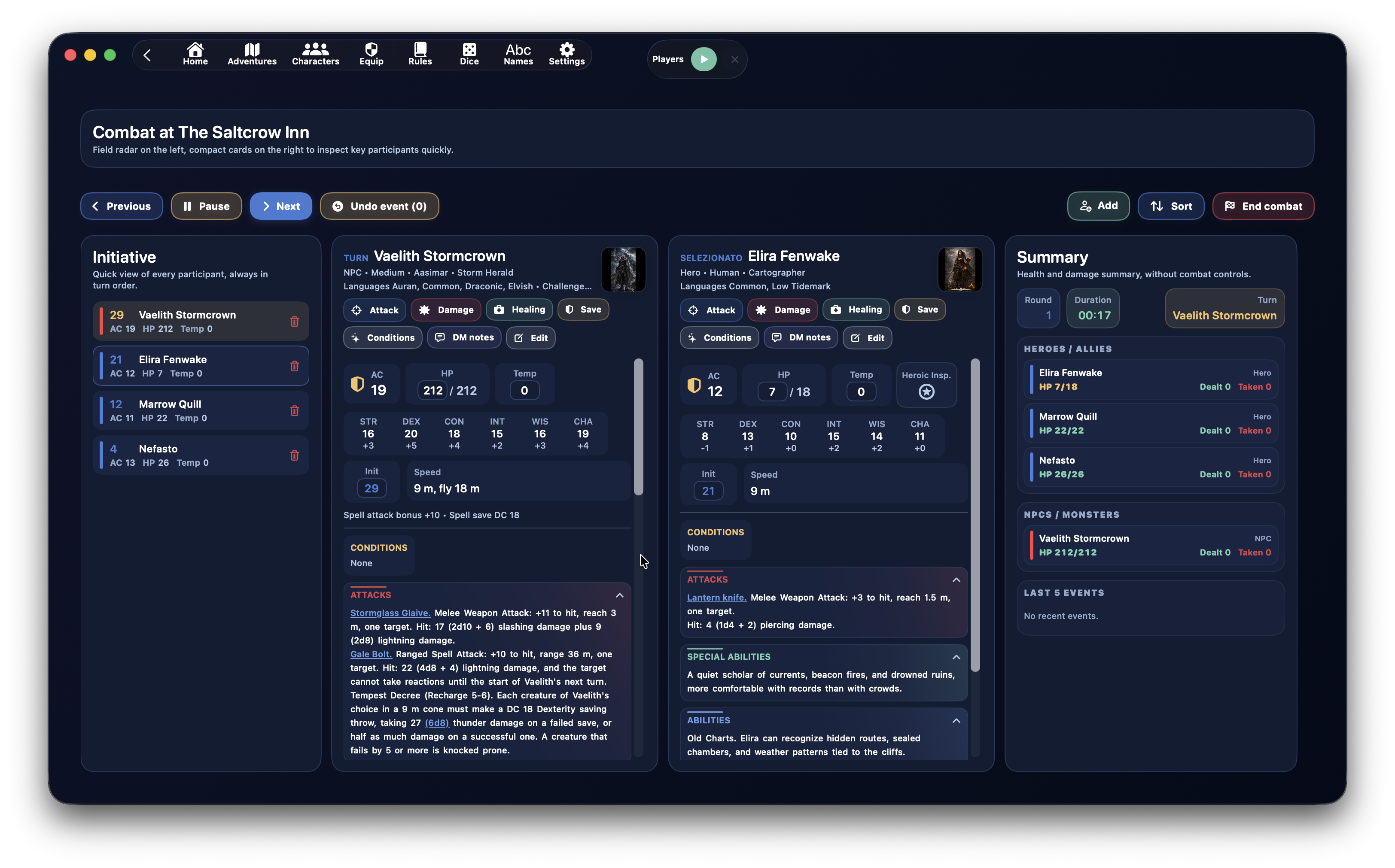
When the encounter starts, the screen switches to the operational combat view.
It is divided into three zones:
- left: the initiative tracker
- center: compact sheets for the current turn and the selected participant
- right: the summary with health, damage, and recent events
The goal is to keep as much useful information visible as possible without opening oversized panels.
Turn Controls
The main controls are at the top.
On the left:
PreviousPause/ResumeNextUndo event
On the right:
AddSortEnd combat
Previous and Next change the turn.
Pause stops the combat timer. When paused, it becomes Resume.
Undo event restores one of the most recent undoable events.
Add inserts new participants during combat.
Sort rebuilds initiative order.
End combat closes the encounter after confirmation.
Initiative Tracker
The left column shows every participant in a compact list.
Each row shows:
- initiative
- name
- AC
- HP
- temporary HP
- condition indicator, when present
- role color
The side color helps distinguish:
- heroes
- allies
- neutral participants
- enemies
Clicking a row:
- opens that participant as selected
- closes the selected column if the same participant was already selected
The trash button on the row removes that participant from combat.
Current and Selected Sheets
The center can show up to two sheets:
- the current turn participant
- the participant selected from the list
Sheets have fixed width and their own vertical scroll, so the page stays stable even with long text.
The top part of the sheet shows:
- name
- type, ancestry, or subtype
- languages, when present
- challenge rating and XP, when present
- image preview
- action buttons
Quick Fields
From the sheet you can edit:
- current HP
- temporary HP
- initiative
AC is shown as a compact shield value.
Adventure heroes can also show the Heroic Inspiration button.
HP changes stay synchronized with the left list and the right summary.
Participant Actions
Each sheet can show:
AttackDamageHealSaveConditionsDM NotesEdit
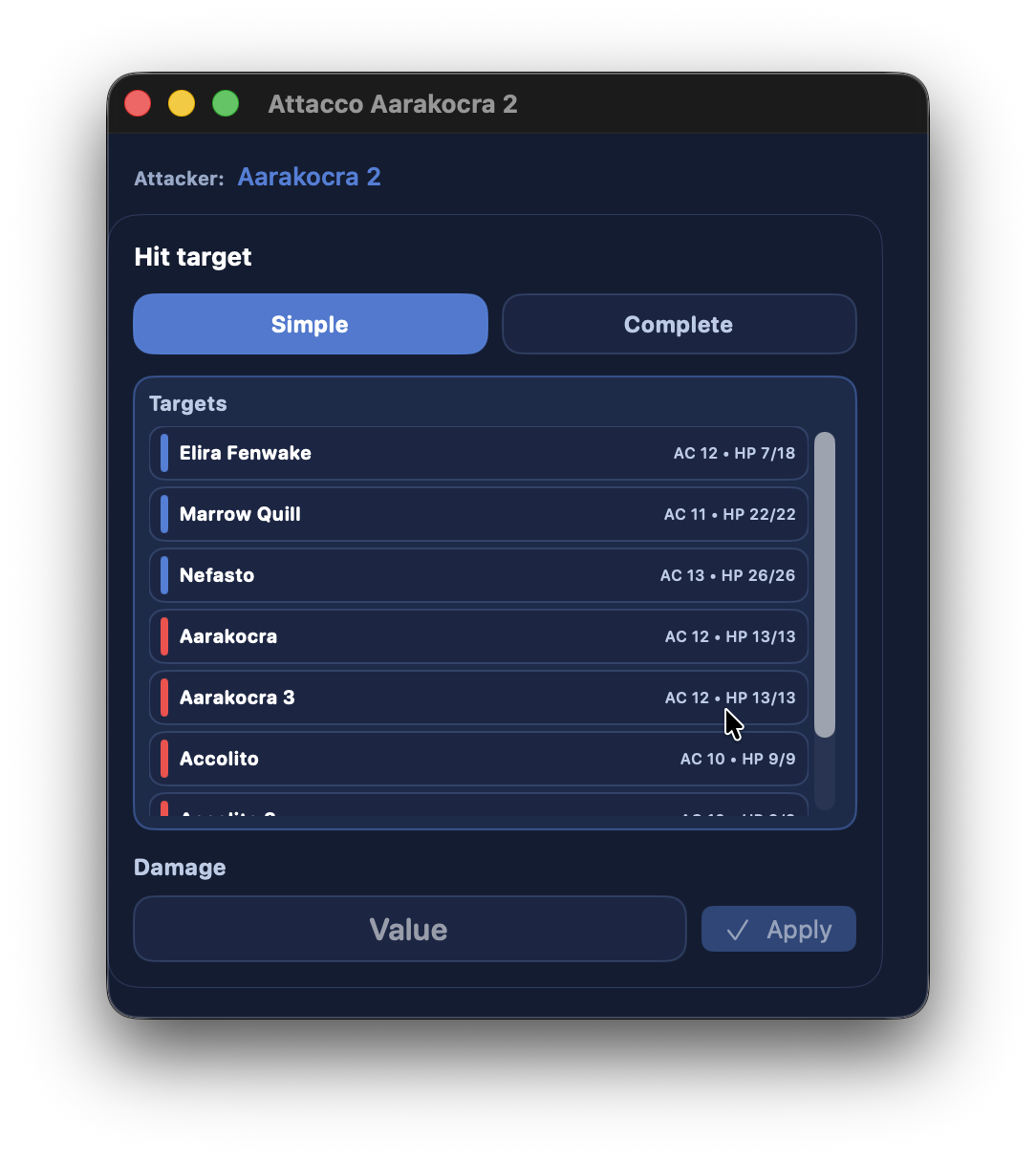
Attack opens a window with the attacker and target list.
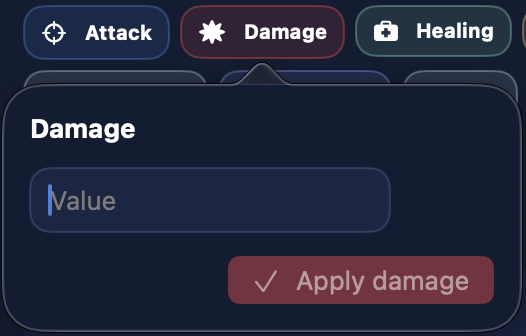
Damage applies direct damage to the participant.
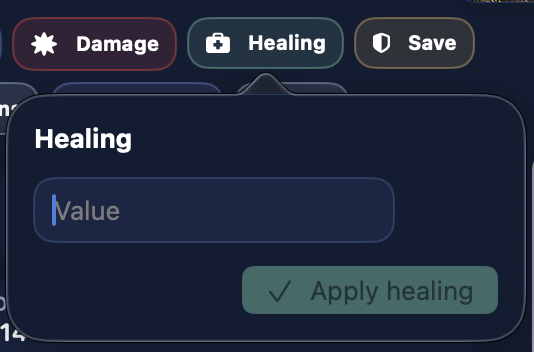
Heal applies direct healing.
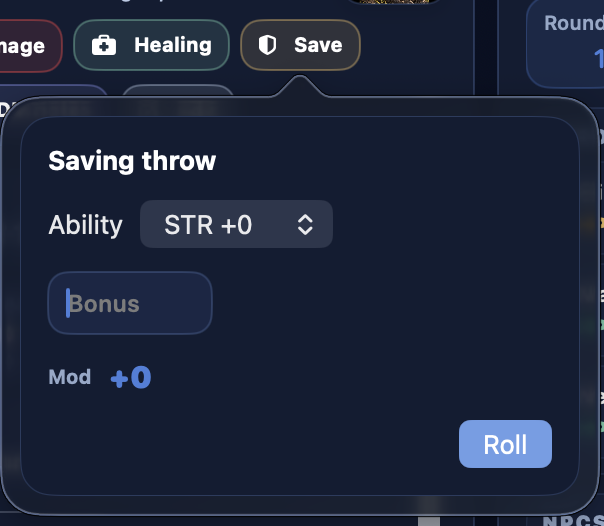
Save opens the available saving throws.
Conditions opens a dedicated window for managing conditions.
DM Notes stores notes about the participant. Notes are not part of undo.
Edit opens the full participant editor.
Target Lists
Target lists are ordered according to the attacker.
If the attacker is an enemy:
- heroes and allies first
- then neutral participants
- then enemies
If the attacker is a hero, ally, or neutral participant:
- enemies first
- then neutral participants
- then heroes and allies
Names are sorted alphabetically inside each group.
The colored side line helps identify the target's role.
Attacks, Abilities, and Internal Links
The main collapsible sections are:
ConditionsAttacksSpecial AbilitiesAbilitiesSpellsDescription
Each section uses a subtle gradient tied to its title color.
Attack, special ability, and ability text can contain internal links created while creating or editing the character.
During combat, these links open dedicated windows so you have more room to resolve the action.
The most useful links are:
Full Attack1d20 + MOD- free roll
- damage roll
- links to internal entities
Full Attack
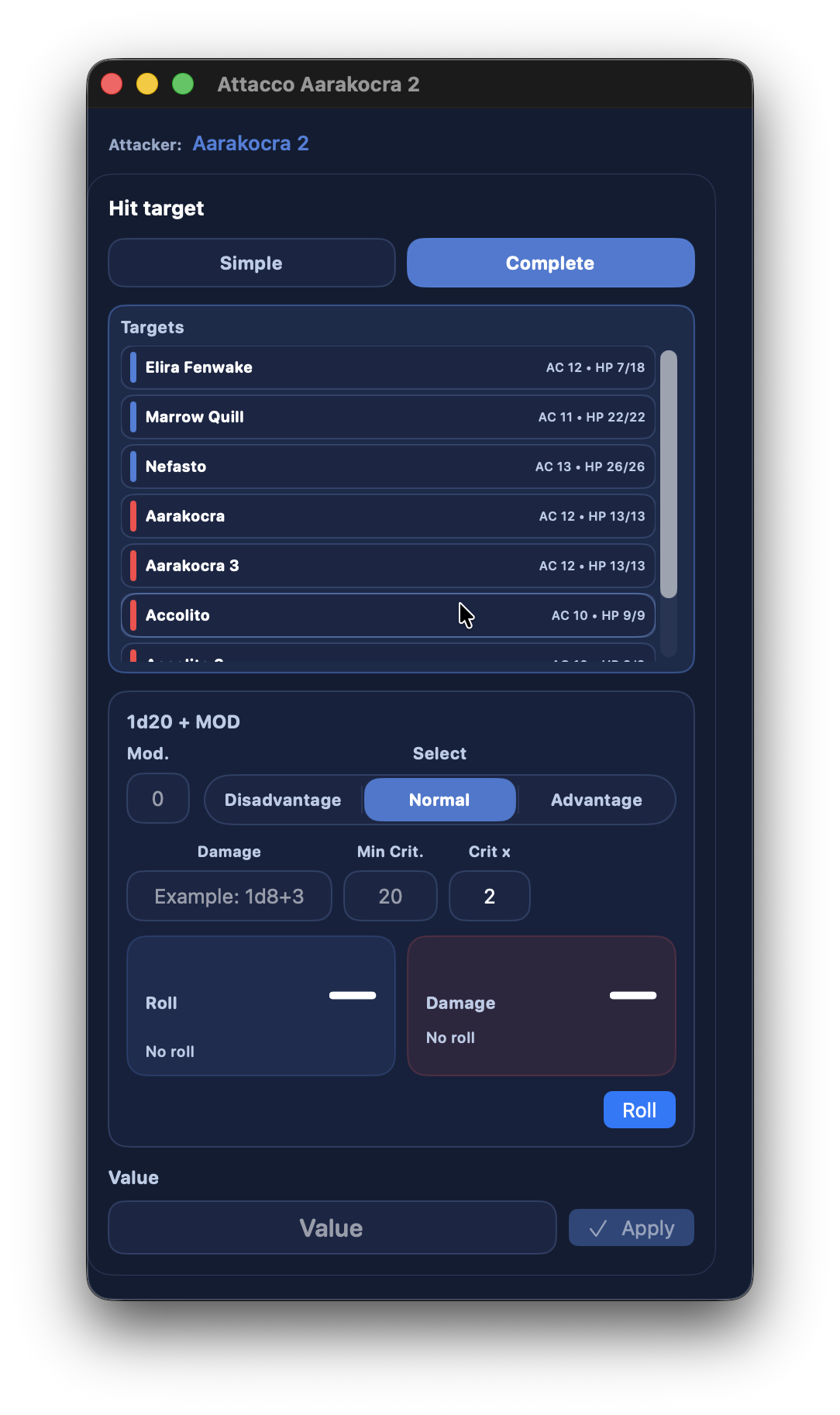
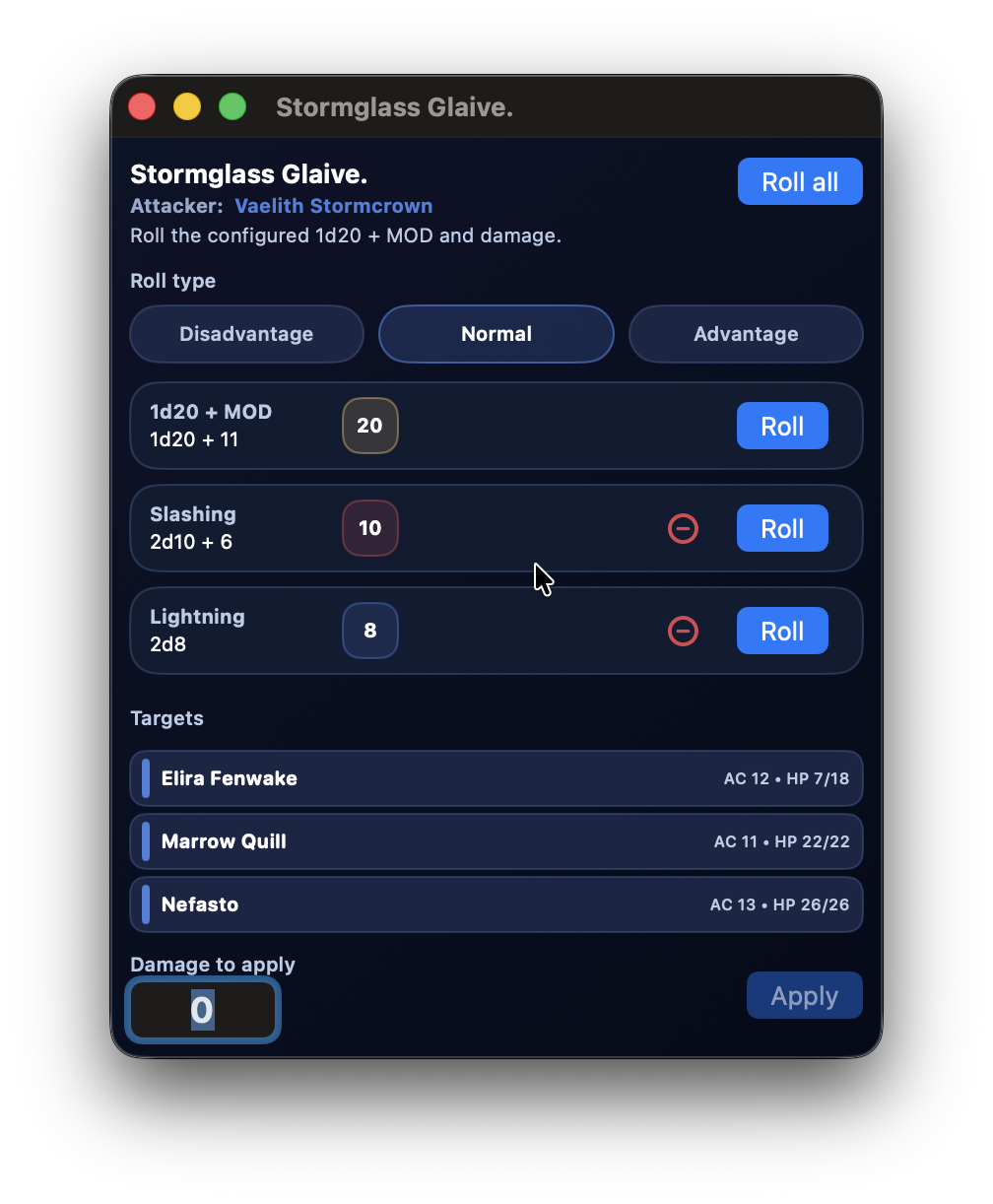
Full Attack is meant for monster, NPC, or hero attack text.
You prepare it in the character creation or editing screen: select the attack text and create a Full Attack link. During combat, that text becomes an action ready to open and resolve.
When used in combat:
- the window shows the attack name
- the attacker is clearly shown
- you can choose one or more targets
- you can manage multiple damage rows
- you apply selected damage to the chosen targets
While creating the link, damage is modular: use the + button to add rows and show only the rows that have values.
Spells
If the participant has spells, the sheet shows the Spells section.
Spells are grouped by level.
For monsters and NPCs, the level row can also show the used slot counter, for example:
0/32/33/3
The Use button on each spell increases the counter for that spell level.
The counter does not block usage when it reaches the maximum. It is only a reminder for the DM.
Cantrips do not use slots.
Conditions
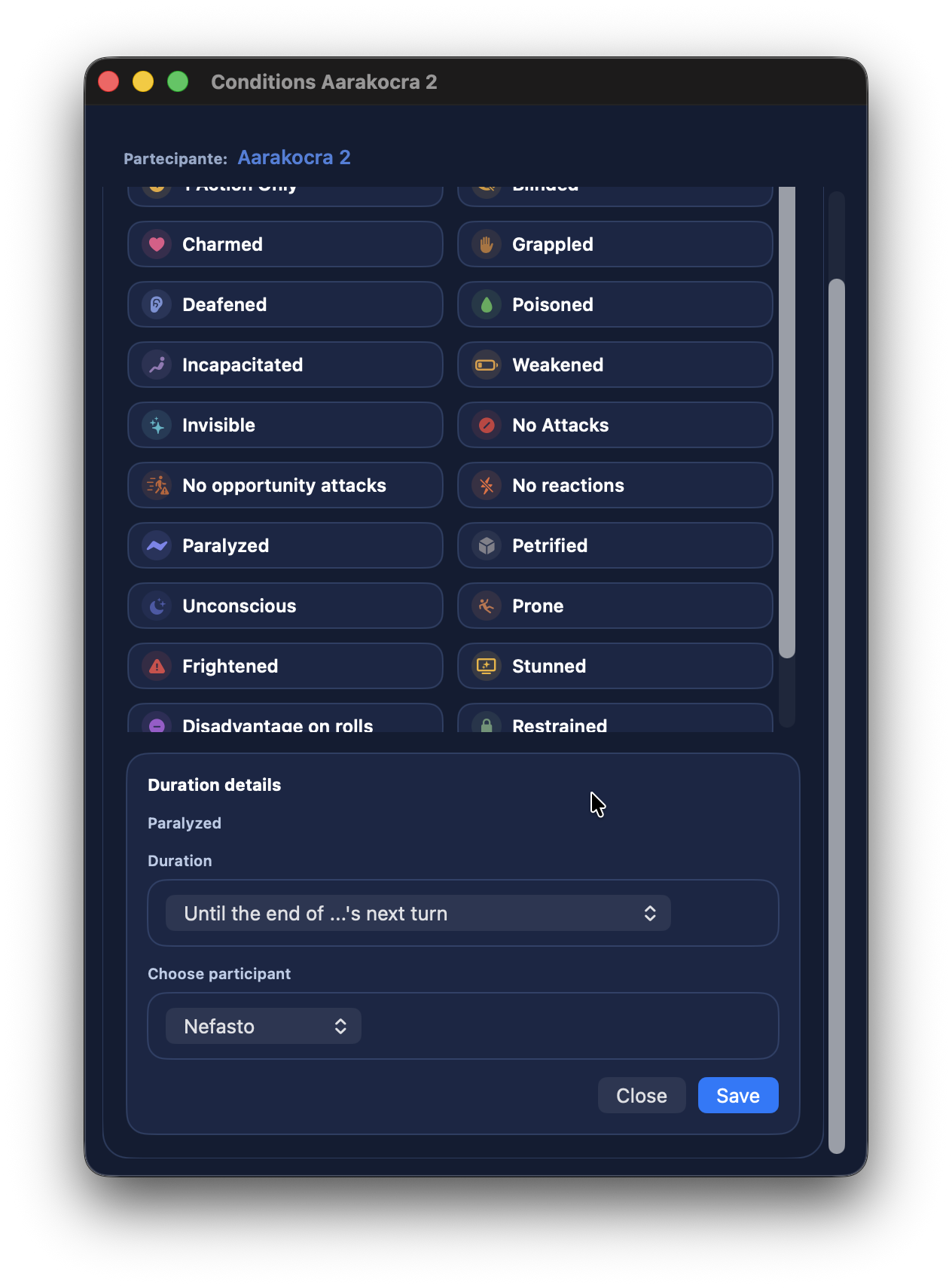
The Conditions window lets you:
- add conditions
- remove conditions
- choose duration
- bind expiration to a participant's turn
- manage related notes
When a condition is applied, DnDino shows visual feedback on the screen and on the affected row.
Heroes at 0 HP or Less
Heroes follow different rules from monsters and NPCs.
A hero can drop below 0 HP.
The rule is:
- from
0to-(maximum HP - 1), the hero is Unconscious - at
-maximum HPor below, the hero dies - the hero also dies after 3 failed death saving throws
When a hero is at 0 HP or less but not dead, the sheet shows Death Saving Throws.
After 3 successes, the hero returns to 1 HP.
NPCs and Monsters at 0 HP
For NPCs and monsters, the rule is simpler:
- at
0HP or less, they are considered dead - they are excluded from the turn cycle
- the summary can show them as dead
Side Summary
The right column shows the Summary.
It includes:
- round
- duration
- current turn
- hero and ally health
- NPC and monster health
- damage dealt
- damage taken
- last 5 events
This is a read-only control view: it helps you understand the encounter at a glance.
HP changes color:
- normal when the participant is in good shape
- yellow below 50%
- orange below 10%
- red at 0 or less
For heroes, HP is struck through only when the hero is truly dead, not merely below 0 HP.
Last 5 Events and Undo
Combat keeps the latest undoable events.
Undo can include:
- attacks
- damage applied by attacks
- healing, when handled as an undoable event
- applied or modified conditions
DM Notes are not undone.
Undo also restores linked statistics, so damage dealt and taken stay consistent.
This matters because total damage dealt by participants should stay coherent with total damage taken.
Visual Feedback
When something happens in combat, DnDino gives immediate feedback:
- top banner
- animation on the affected participant row
- feedback on the
Applybutton, when available - side summary update
This makes it clear that the command was received.
Final Encounter Summary
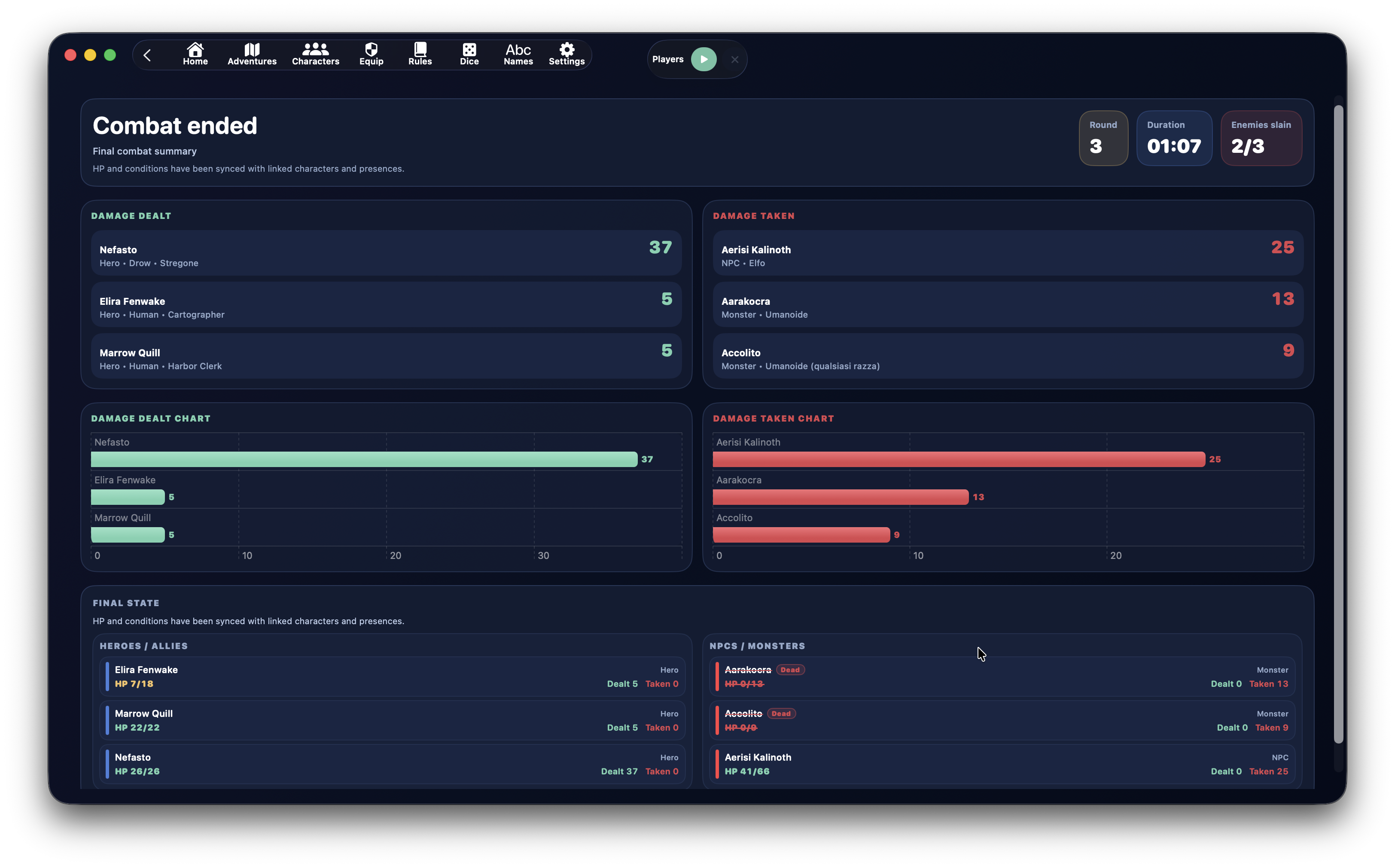
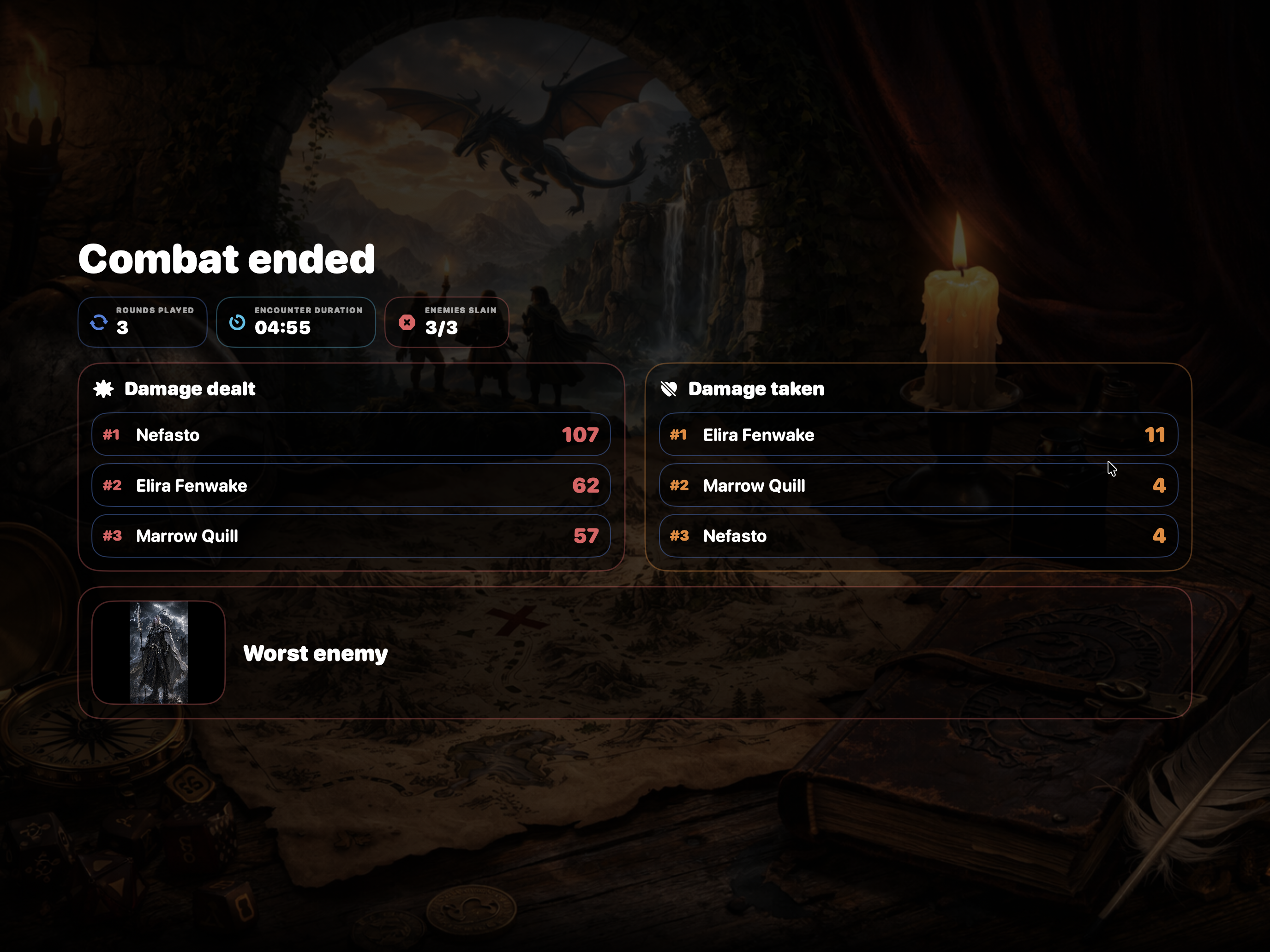
When you confirm the end of combat, the encounter can no longer be edited.
The final screen shows:
- total rounds
- duration
- enemies killed
- damage dealt
- damage taken
- final participant state
Final HP and conditions are synchronized with linked records.
Final Synchronization
When combat closes, DnDino synchronizes the data where needed.
For adventure heroes:
- current HP
- temporary HP
- conditions
- final state
For place presences with local state:
- current HP
- temporary HP
- conditions
- final state
Combat can also feed live session data and statistics.
Statistics
DnDino uses completed combats to build statistics and charts.
Statistics can include:
- damage dealt
- damage taken
- encounter duration
- number of combats
- enemies killed
- damage trends by day
- average session duration
The adventure dashboard includes Adventure Statistics, which collects completed combats, even outside a single live session, and groups them in a readable way.
The live session summary can show charts for combats completed during that session.
Best Use
DnDino combat works best when you:
- prepare pre-combat carefully
- assign initiative and names before starting
- use the left tracker to keep the whole encounter visible
- keep the current turn sheet open and, when useful, also the selected target sheet
- use links in attacks and abilities
- use the side summary for health, damage, and recent events
- end combat only when you are sure, so statistics and synchronization stay clean
Tip
Even though DnDino automates many operations, you can still roll physical dice. In that case, use combat mainly to apply damage, healing, and conditions quickly, without repeatedly recalculating HP and statistics by hand.