Home Page
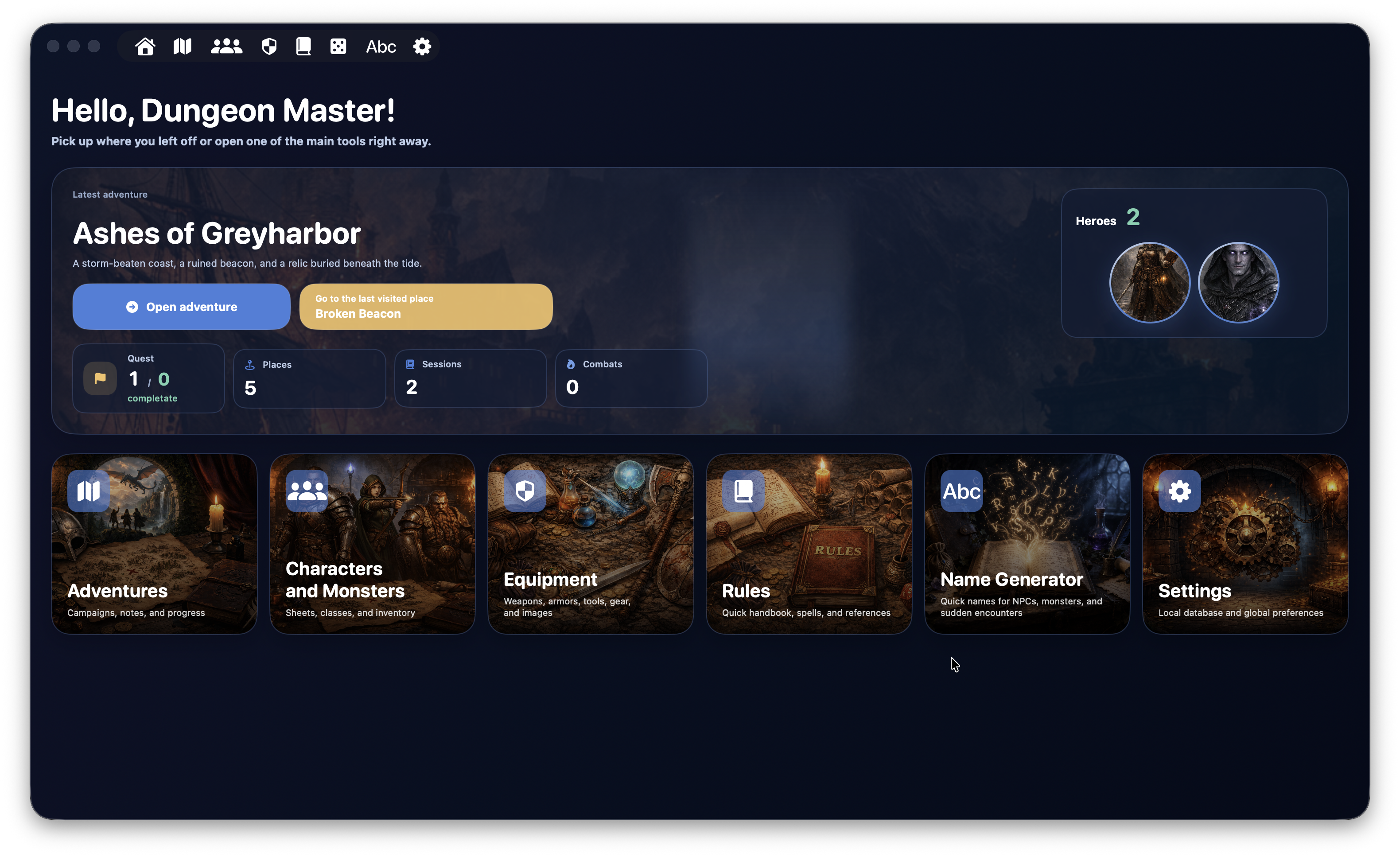
The Home Page is the opening screen of DnDino. It isn't meant to be the place where you directly manage every module of the app. Instead, it's a quick access hub designed to:
- jump back into your most recently used adventure
- return quickly to the main tools
- help you orient yourself when the app opens
The Home Page therefore has two main purposes:
- quick resumption, if you already have an active campaign
- guided start, if you're beginning from scratch
Screen Structure
The Home is made up of three main areas:
- a welcome header
- a main panel dedicated to your latest adventure or first-time setup
- a grid with the app's main tools
Welcome Header
At the top of the screen, the app shows a greeting.
If you entered the Dungeon Master's name in settings, the Home displays a personalized message, for example:
Hello, Marcus!
Otherwise, it falls back to a generic version:
Hello, DM!
Under the greeting, a short line explains the purpose of the screen: either resume what you were doing or jump straight to one of the app's main tools.
Main Panel
The main panel changes depending on the state of the app.
If a Recent Adventure Exists
When the app finds an adventure you've used recently, the Home shows a large card dedicated to your latest adventure.
This card contains:
- the adventure title
- a short description, if present
- an
Open adventurebutton - an optional button to jump directly to the last visited place
- some summary statistics
- a visual section with the heroes linked to the adventure
If the adventure has a cover image, that image is used as the card background. Otherwise, DnDino shows a default graphic background.
Open Adventure Button
The main button on the card opens the adventure dashboard, which is the operational center of the campaign.
It's the fastest way to get back to work.
Go to the Last Visited Place
If the app knows which place was last opened inside the adventure, the card also shows a second button that takes you straight there.
This is especially useful when you want to resume exploration or continue work on a specific narrative area of the campaign.
Adventure Statistics
The main panel also shows a few summary metrics for the latest adventure.
The visible stats are:
QuestsPlacesSessionsCombats
These values are meant as a quick glance to understand how much material has already been built for the campaign.
Adventure Heroes
If the adventure has linked heroes, the right side of the card shows a section dedicated to them.
This area can display:
- the total number of heroes
- portraits, if available
- a message inviting you to add cover images if the heroes don't have any yet
When there is only one hero, the portrait is shown larger. When there are several heroes, the portraits are arranged in a more compact group.
This section is mostly visual: it helps you recognize the campaign at a glance.
When No Adventure Exists Yet
If the user doesn't have any adventures yet, the Home shows an alternate panel meant to support the first setup.
In that case the screen displays:
- the title
Ready to begin - a short introductory description
- a
Go to adventuresbutton - three suggested steps for getting started with DnDino
The three suggested steps are:
- create an adventure
- add characters
- build places and quests
In this state, the Home acts as onboarding and helps the user start building their first campaign.
Main Tools
Below the main panel there is a grid of cards representing the app's main tools.
The sections available from the Home are:
AdventuresHeroes, NPCs, and MonstersEquipmentRulesName GeneratorSettings
Each card includes:
- a title
- a short descriptive subtitle
- an icon
- a dedicated illustrated background
Adventures
Opens the campaign list and lets you:
- create a new adventure
- open an existing campaign
- resume preparation work
Heroes, NPCs, and Monsters
Opens the section that collects the creature records. From here you can work on:
- heroes
- NPCs
- monsters
- base data linked to the records
Tip
Over time you'll notice that many characters can also be opened and edited directly from inside an adventure, so your preparation flow doesn't have to break.
Equipment
Opens the section dedicated to:
- weapons
- armor
- tools
- gear
Rules
Opens the quick-reference area for rules and supporting references. It is useful for:
- consulting support material
- searching rules
- opening related game references
Name Generator
Opens the tool for quickly generating useful names during preparation or improvisation, for example for:
- NPCs
- monsters
- unexpected encounters
Tip
The quick name generator is also available from the top bar, without leaving the current screen.
Settings
Opens the panel for global app preferences and local database management.
When to Use the Home
The Home is especially useful when you want to:
- quickly resume the latest campaign
- open the most recent adventure dashboard
- return to the last visited place
- access the main tools of the app
- start a new campaign if the database is still empty
Tip
If you're working on the same campaign most of the time, the latest adventure card is the fastest way to get back to the right place without reopening the full adventure list each time.