Interactive Maps
Interactive maps let you navigate the places of an adventure visually on a real map image, using clickable markers linked to place records.
They are designed for cases where a simple tree structure is no longer enough and you want to move through the campaign space in a more natural way, for example across:
- a city
- a castle
- a district
- a dungeon
- a region
What They Are For
Interactive maps are useful when you want to:
- use a map as the main navigation surface
- open places by clicking visual markers
- give the campaign a clearer spatial structure
- move from a detailed map to a broader one
They do not replace Places and they do not replace Concept Maps:
- Places remain the real records of the campaign
- Concept Maps are used to show logical and narrative relationships
- Interactive Maps are instead used to navigate real places on top of a map image
Where They Come From
Interactive maps are not a separate record type created in some other module. They are born from map images linked to places.
In practice:
- you link one or more
Mapimages to a place - you choose which one should be used as the default interactive map
- you add markers to that map and link them to places
Where They Are Used
Interactive maps live inside Places and Quests.
They can be used in two ways:
- as an integrated interactive mode inside the places dashboard
- as a large map panel opened from
Media
Difference Between Integrated Mode and Large Panel
Integrated Interactive Mode
When the adventure has maps available, inside the places dashboard you can switch from the normal view to the Interactive view.
In this mode:
- the left side of the screen shows the map instead of the classic place tree
- the right panel continues showing the detail of the selected place
- clicking markers lets you navigate directly through places
Large Map Panel
From the Media panel of a place, you can also open an interactive map inside a larger dedicated panel.
This mode is particularly useful when you want to:
- edit markers
- fix links
- work on the map with greater precision
How to Prepare an Interactive Map
The correct flow is:
- open the place that should own the map
- go to
Media - add one or more images of type
Map - choose which one should become the default interactive map
- open the interactive map
- create markers and link them to places
How the Default Map Is Chosen
A place can have more than one linked map. Among them, one can be marked as the default interactive map.
When DnDino needs to decide which map to show for a place, it follows this logic:
- if the place has a map explicitly selected as interactive, it uses that
- otherwise it uses the first available map of that place
- if the place has no maps of its own, it may use a parent place map
Relationship Between Place and Map
Every interactive map belongs to a place.
The place that owns the map is not necessarily the only place you can open from it: markers can link to any place in the adventure structure.
Entering Interactive Mode
Inside the Places dashboard, when maps are available, you can switch to the Interactive view.
In that mode you find:
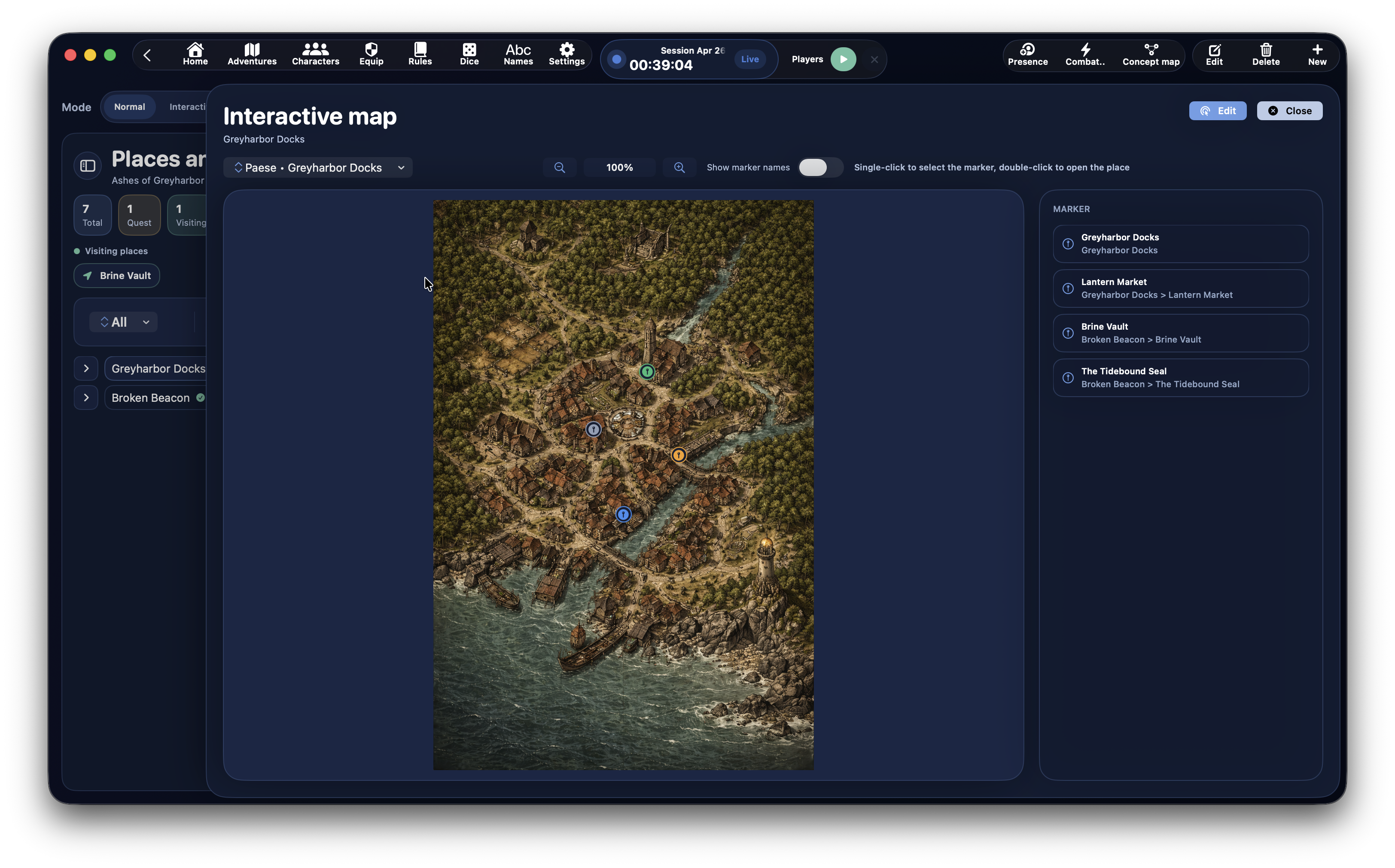
- interactive map header
Mapselector- optional
Backbutton - optional
Upper levelbutton Show marker namestoggle- zoom controls
- the map canvas
Map Selector
The Map menu lets you choose which map to display from the maps available in the adventure.
Navigation Between Maps
Interactive mode supports two kinds of navigation between maps.
Back
The Back button returns you to the previously displayed map.
Upper Level
If the current place has a parent place that owns an interactive map, the Upper level button may appear.
This lets you move back to a broader map.
The Map Canvas
The canvas is the central surface where the real map is displayed.
Here you can:
- view the map
- see markers
- click or double-click markers
- use zoom and pan
Zoom and Movement
Interactive maps support:
- zoom in and out
- zoom reset
- horizontal and vertical scrolling
- panning by dragging the map
- pinch gesture
- mouse-wheel zoom when the cursor is over the map
Show Marker Names
With the Show marker names toggle you can decide whether marker labels should also be visible directly on top of the map.
When active:
- each marker can show its own title or, if the title is empty, the name of the linked place
When inactive:
- only the marker icons remain visible
How Markers Work
A marker contains:
- normalized position on the map
- optional title
- optional link to a place
The marker is saved relative to the map coordinates and therefore stays in the correct position even when zoom changes.
Markers also change color based on the status of the linked place, so the map gives you a clearer at-a-glance sense of exploration progress:
grayforUnvisitedplacesorangefor placesCurrently visitinggreenforVisitedplaces
These colors are fixed and do not change with the active theme, so their meaning stays consistent across the app.
Marker Behavior in Read Mode
When you are not in edit mode:
- a single click selects a marker
- a double click opens the linked place
In integrated interactive mode, opening a place means updating the right panel immediately.
In the large map panel, opening a place closes the map panel and returns focus to the selected place in the dashboard.
How to Create a Marker
To create a marker in the large map panel:
- open the interactive map from
Media - press
Edit - press
New marker - choose the place to associate
- click a point on the map
Edit Mode
In the large panel there is a real edit state.
When you press Edit:
- the map enters editing mode
- you can create new markers
- you can select existing markers to edit them
- you can drag markers to reposition them
When you press Lock, you leave edit mode.
New Marker
When you activate New marker:
- DnDino first asks you to choose the place to associate
- then it asks you to click the map to position it
Choosing the Linked Place
When you are creating or editing a marker, the inspector on the right shows the place selector.
From here you can:
- search by name
- see places arranged in a hierarchy
- assign the marker to the correct place
Editing an Existing Marker
When a marker is selected in edit mode, you can modify in the inspector:
Marker titleLinked place
If the title is left empty, DnDino falls back to the linked place name or to a generic title.
Moving a Marker
In edit mode, you can drag a marker to a new point on the map.
At the end of the drag, DnDino saves:
- new X position
- new Y position
Deleting a Marker
Also from the inspector, when a marker is selected, you can use:
Delete marker
The Map Inspector
The side panel of the large map changes depending on the current state.
In Read Mode
If you are not editing, the inspector simply shows the list of existing markers.
While Creating a Marker
If New marker is active, the inspector shows:
- instructions
- search field
- list of selectable places
While Editing a Marker
If you have selected an existing marker, the inspector shows:
- title field
- linked place selector
- current place summary
- button to delete the marker
Marker List
The marker list in the inspector can also be used for navigation.
Each row shows:
- marker title
- linked place, if any
In read mode, clicking a row opens the linked place.
How the Map Behaves in Integrated Mode
When you use Interactive mode directly inside the places dashboard:
- the map follows the selected place
- DnDino tries to show the most suitable map for that place
- if the place has no map of its own, it may use a map from an upper level
Inheriting a Map from a Parent Place
A very useful part of the system is that a place can also use a map from an upper level.
This allows scenarios such as:
- a district using the city map
- a room using the castle map
- a point of interest using the region map
How to Open an Interactive Map from Media
In the Media panel of a place, maps of type Map can show the action:
Open interactive map
When It Makes Sense to Use Integrated Mode
Integrated interactive mode is the best choice when you want to:
- navigate quickly between places
- work with the map and the place panel side by side
- use the map as an alternative to the classic tree
When It Makes Sense to Use the Large Panel
The large panel is the better choice when you want to:
- create markers
- move markers
- change links
- work with greater precision
In Practice
Interactive maps are the right tool when you want to give places a real spatial dimension.
The core idea is simple:
- the place remains the main record
- the map becomes the visual surface
- the marker is the operational link between image and content